Getting Started with Vocabu – Learn Vocabulary Effectively
This guide walks you step by step through creating study sets, adding vocabulary, and learning efficiently with Vocabu's intelligent Spaced Repetition system.
Select or Create a Study Set
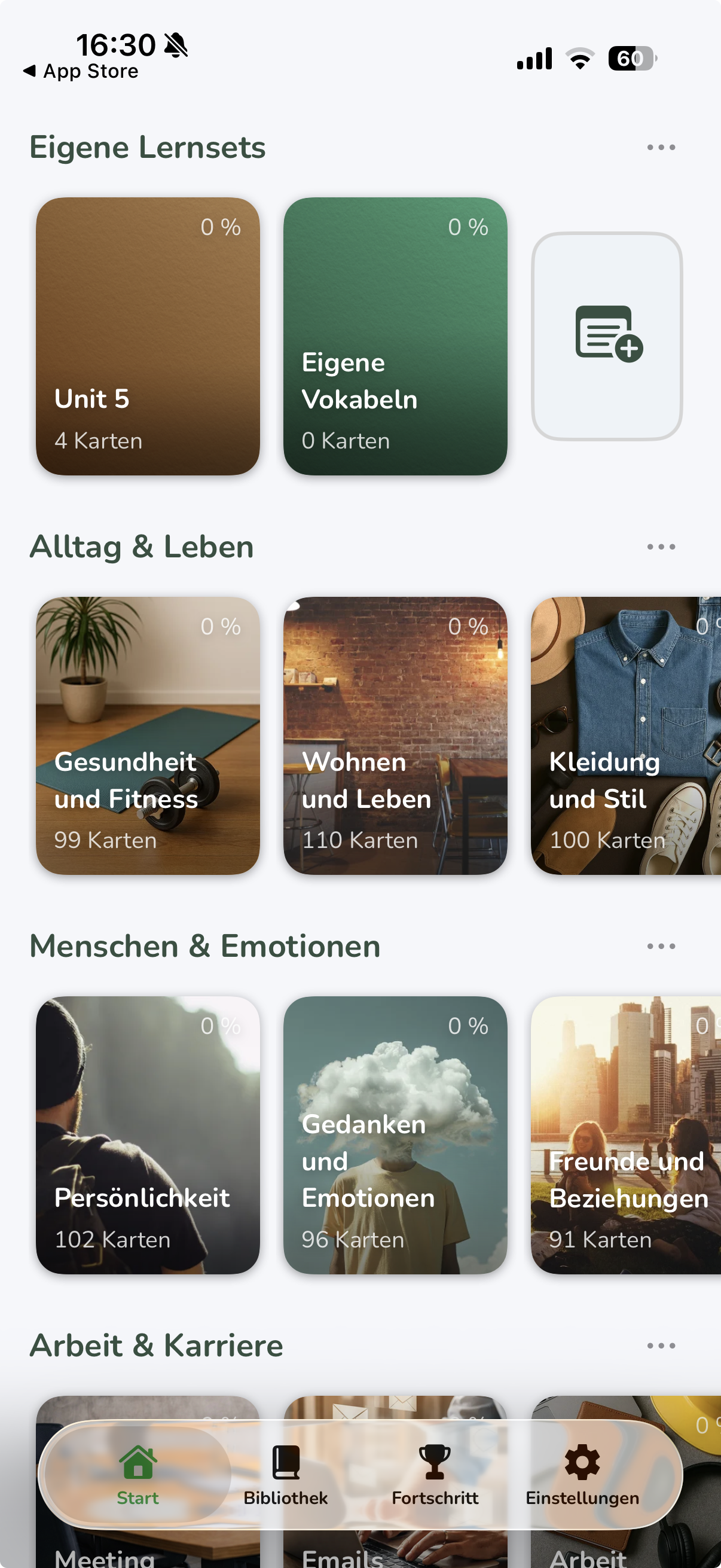
The home screen shows an overview of your study sets. Tap an existing set to open it, or tap the plus icon to create a new study set.
Create a New Study Set
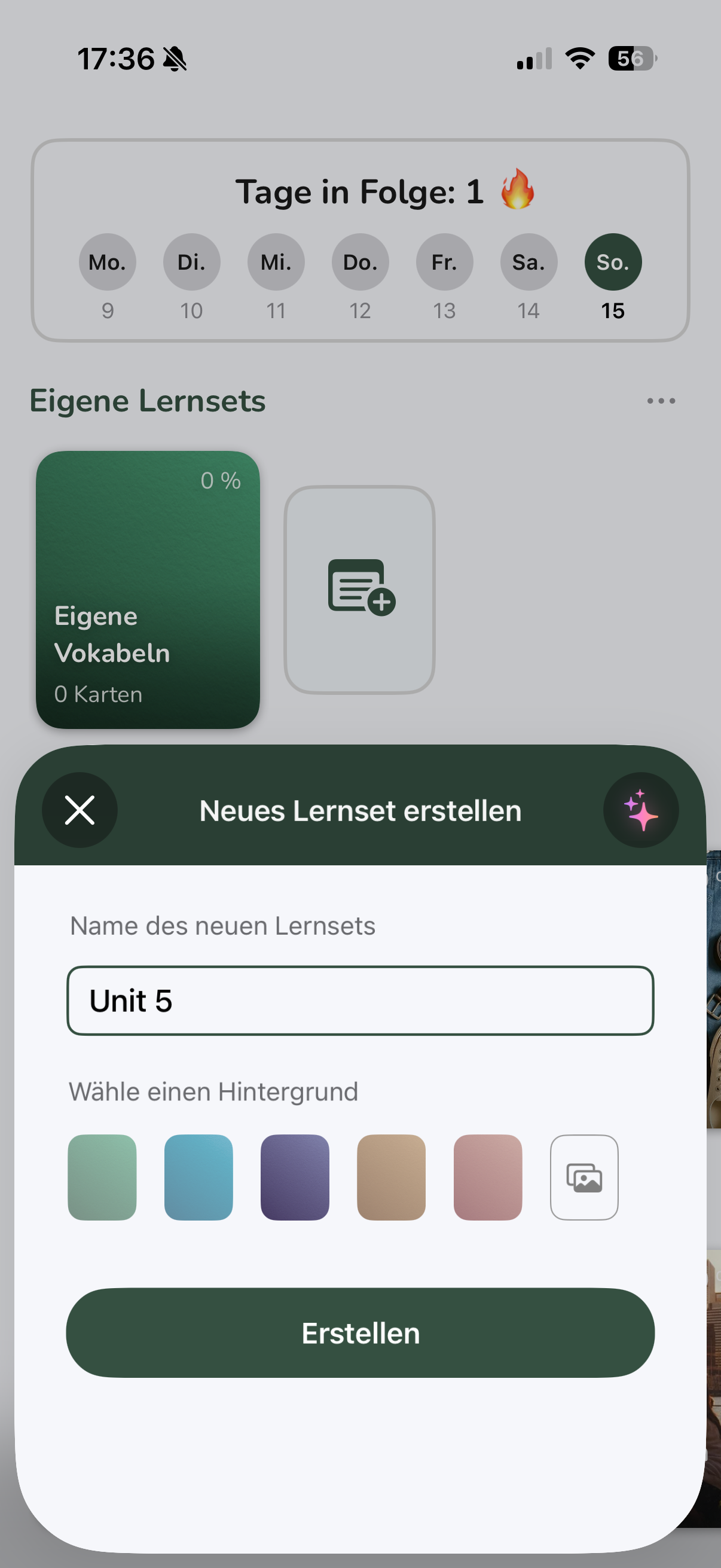
When creating a new study set, you can give it a name and choose a matching background. Then tap "Create" to set it up.
Add Cards
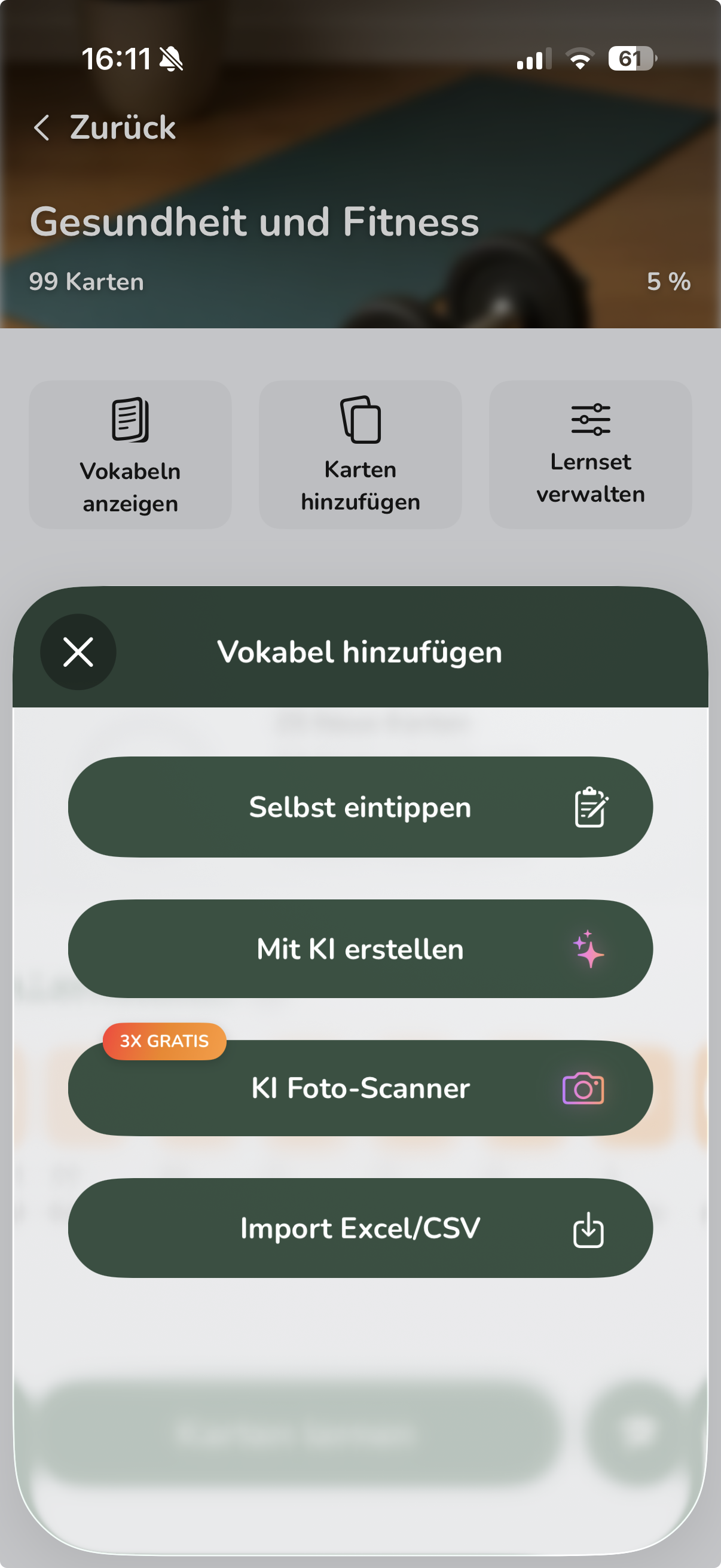
Inside your study set, tap "Add Cards" or the plus icon. Vocabu offers several ways to add vocabulary:
- Type manually: Enter vocabulary one at a time
- Create with AI: Let the AI generate a complete collection on any topic
- AI Photo Scanner: Scan vocabulary from photos or documents
- Import Excel/CSV: Import existing vocabulary lists
Type it Yourself
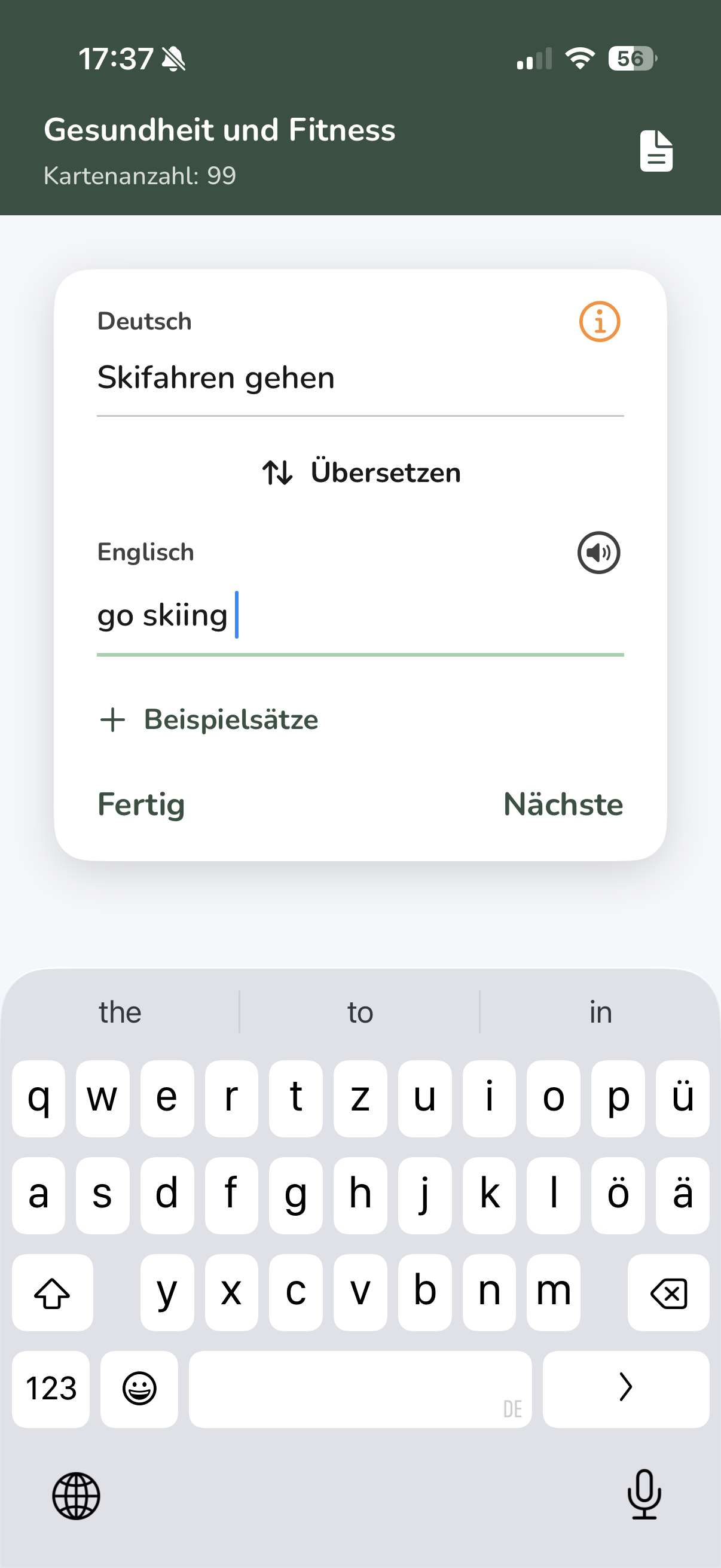
When creating a card manually, enter the word and add the translation. Optionally you can include example sentences, images or audio recordings. Tap "Next" to add more cards, or "Done" when you're finished.
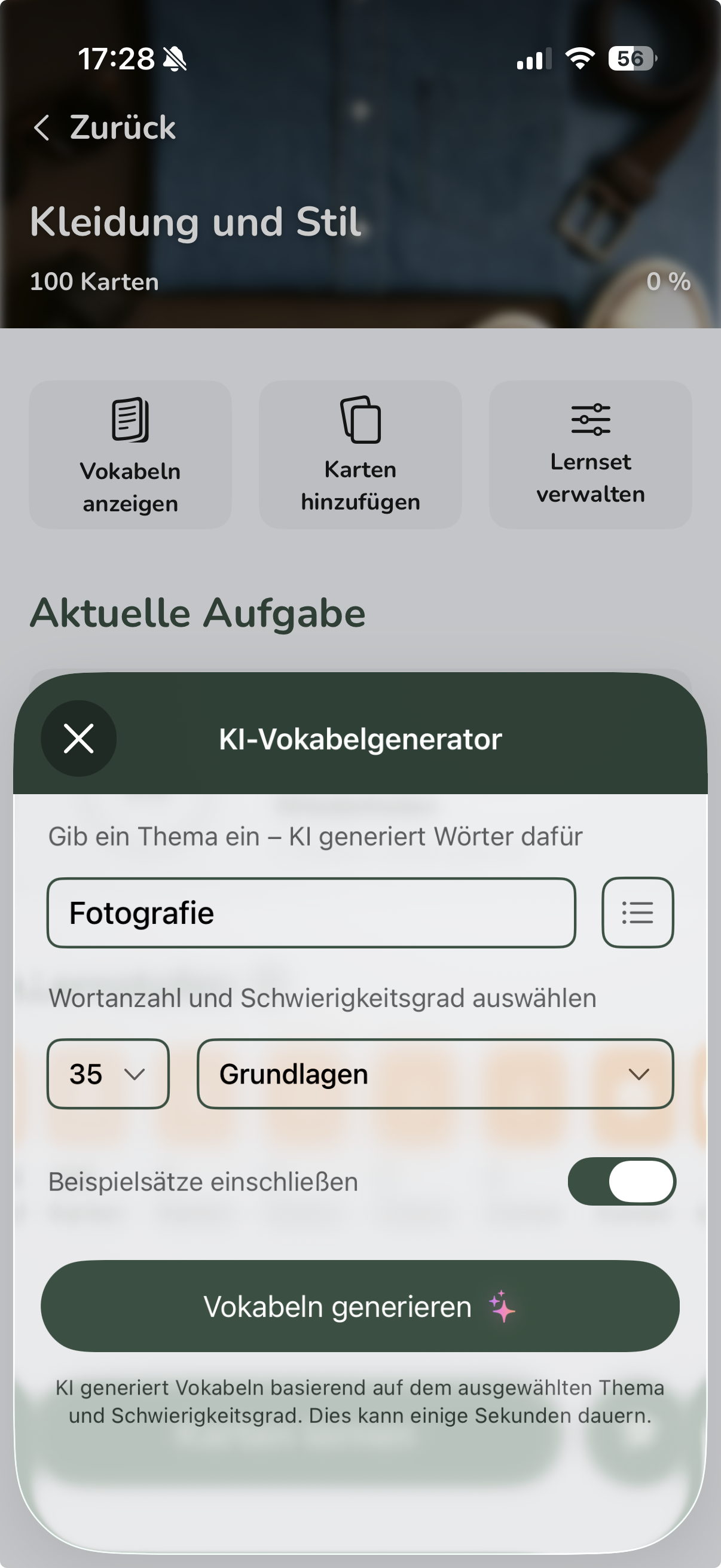
Create with AI
You don't have to type vocabulary one by one – Vocabu can automatically create a complete card collection on any topic you choose. Simply enter a topic, pick your settings, and let the AI do the work.
How it works
- In your study set, tap "Add Cards" → "Create with AI"
- Enter a topic, e.g. "English words for travel" or "French verbs for everyday life"
- Choose whether cards should be created with or without example sentences
- Confirm with "Create" – the AI generates the cards automatically
- The finished cards are added directly to your collection
AI Photo Scanner
With the AI Photo Scanner you can digitize vocabulary quickly and easily from various sources:
- Scan photos: Photograph textbooks, worksheets or other printed materials
- Use screenshots: Import screenshots from digital documents or websites
- Recognize handwriting: The AI can also process handwritten notes
How it works
- Select "AI Photo Scanner" from the "Add Cards" menu
- Take a photo or select an image containing vocabulary
- The AI automatically extracts text and identifies vocabulary
- Review the recognized vocabulary and correct if needed
- Add the vocabulary to your collection with one tap
Excel Import
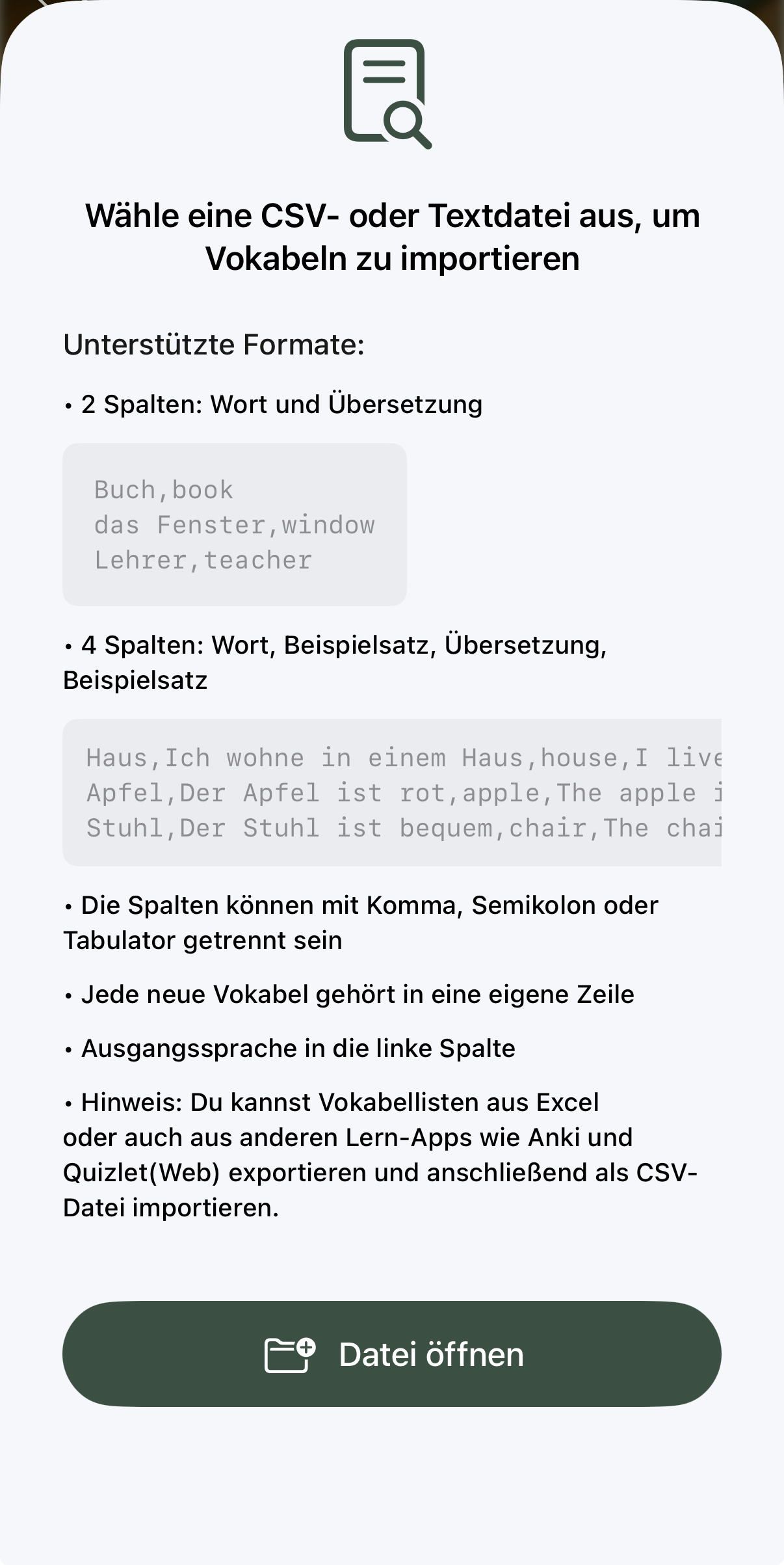
You can import vocabulary conveniently as a CSV or text file – for example from Excel, or from other learning apps like Anki and Quizlet (web export).
Supported Formats
- 2 columns: Word and translation
book, Buch - 4 columns: Word, example sentence, translation, example sentence (target language)
house, I live in a house, Haus, Ich wohne in einem Haus
Format Notes
- Columns can be separated by comma, semicolon or tab
- Each new vocabulary item belongs on its own line
- The source language goes in the left column
The Flashcard System
Vocabu is based on the classic flashcard principle: you see the front of a card – for example the English word – and translate it in your head. Then you tap the card to flip it and check your answer.
How Studying Works
- You see the word on the front of the card
- Translate the word silently in your mind
- Tap the card to flip it and reveal the answer
- Honestly rate whether you got it right:
- 👍 Correct: The card moves one learning level to the right – you won’t see it again until a longer interval has passed
- 👎 Wrong: The card moves one learning level to the left – you’ll review it again soon
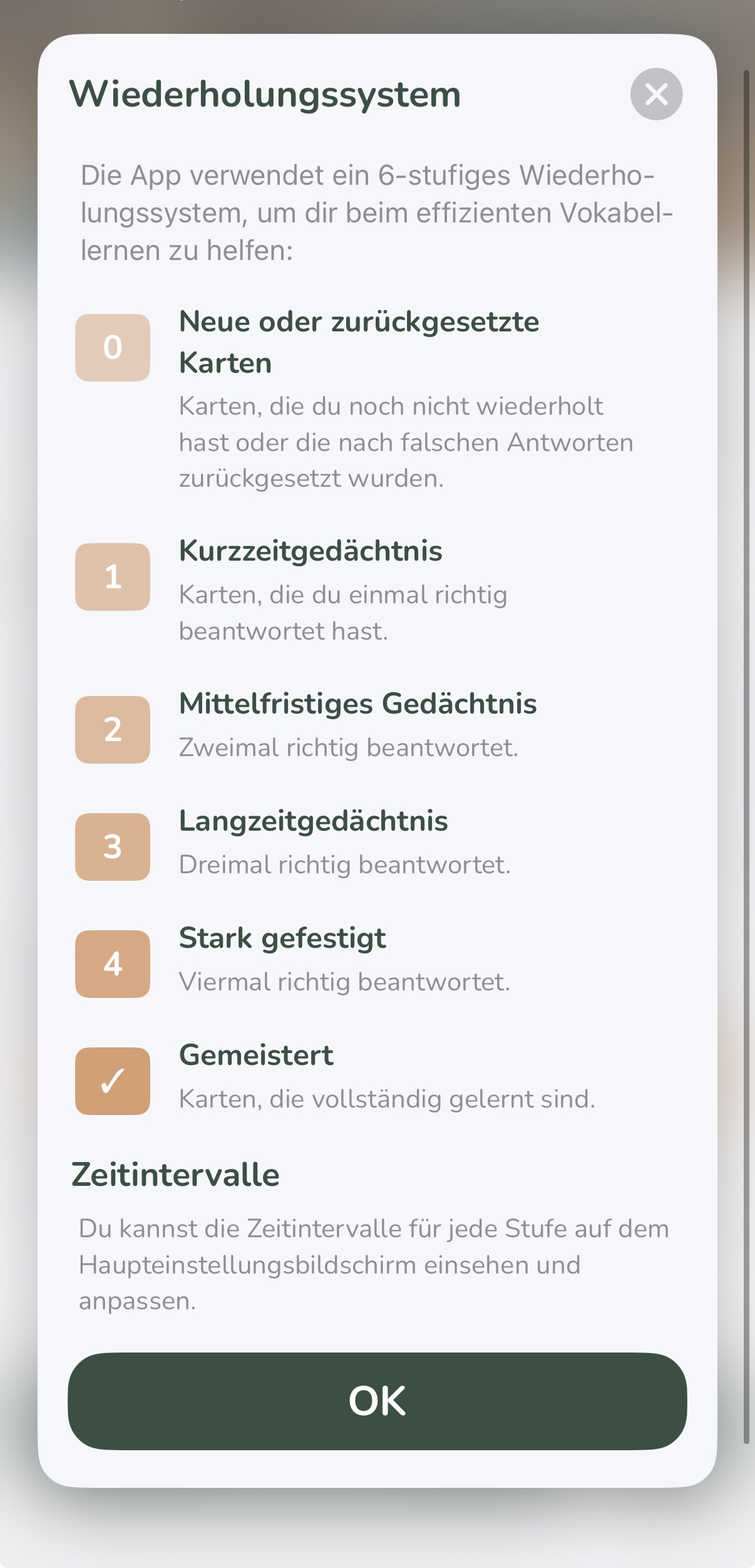
The Learning Levels
Every card moves through several learning levels from left (new) to right (confidently mastered). There are time gaps between each level – the further right a card is, the longer until the next review. This principle is called Spaced Repetition and ensures you review vocabulary exactly when you would otherwise forget it.
Study Set Overview
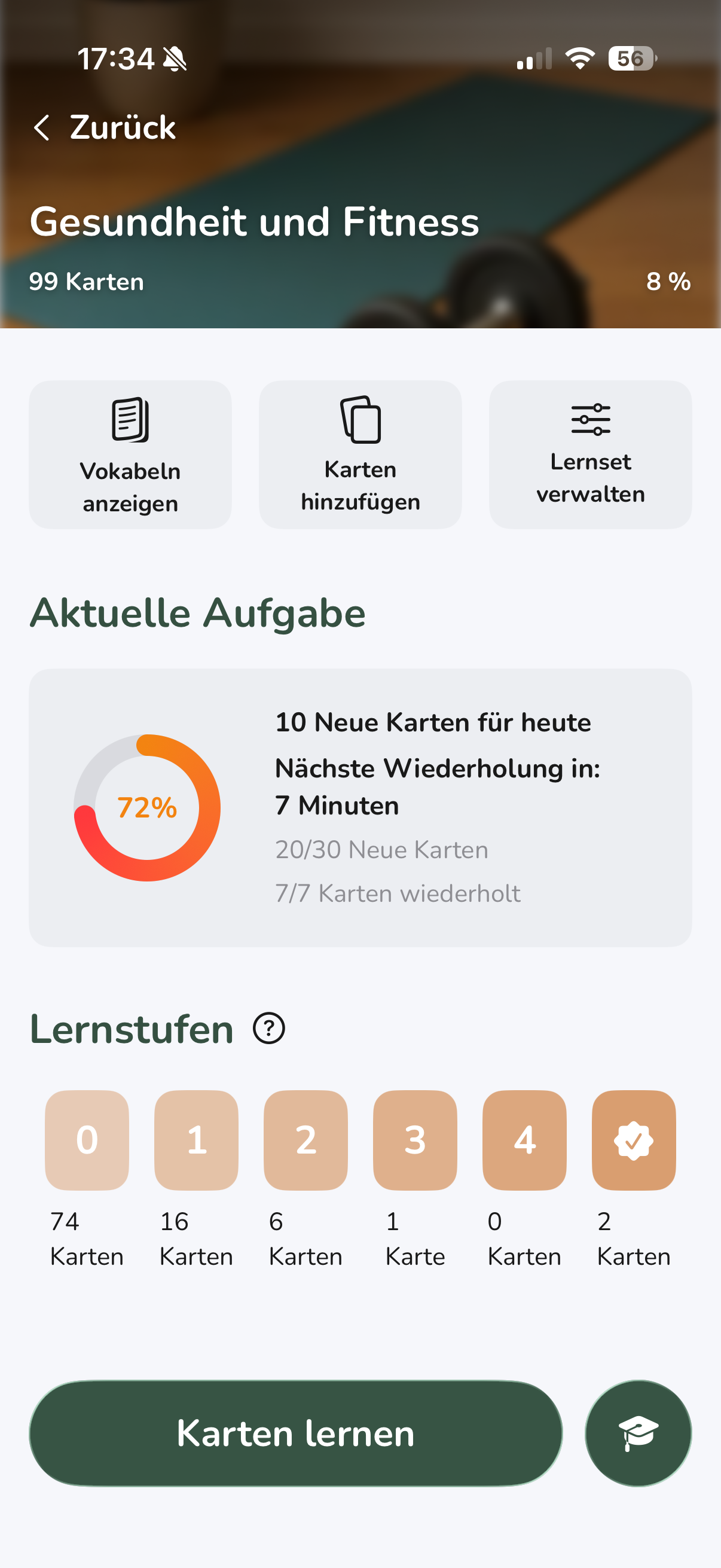
Once you have cards in your study set, you can start learning. Tap “Study Cards” to begin a session.
The “Learning Levels” Widget
In the app you’ll see the Learning Levels widget, which shows at a glance how your cards are distributed across all 6 learning levels. Each level is displayed as its own column – from New on the far left to Mastered on the far right. The number in each column shows how many cards are currently at that level.
“Current Task” Widget
The widget shows you at a glance:
- Due Cards: How many cards are scheduled for review today
- New Cards: How many new words you can learn today
- Level Distribution: An overview of how your cards are spread across levels
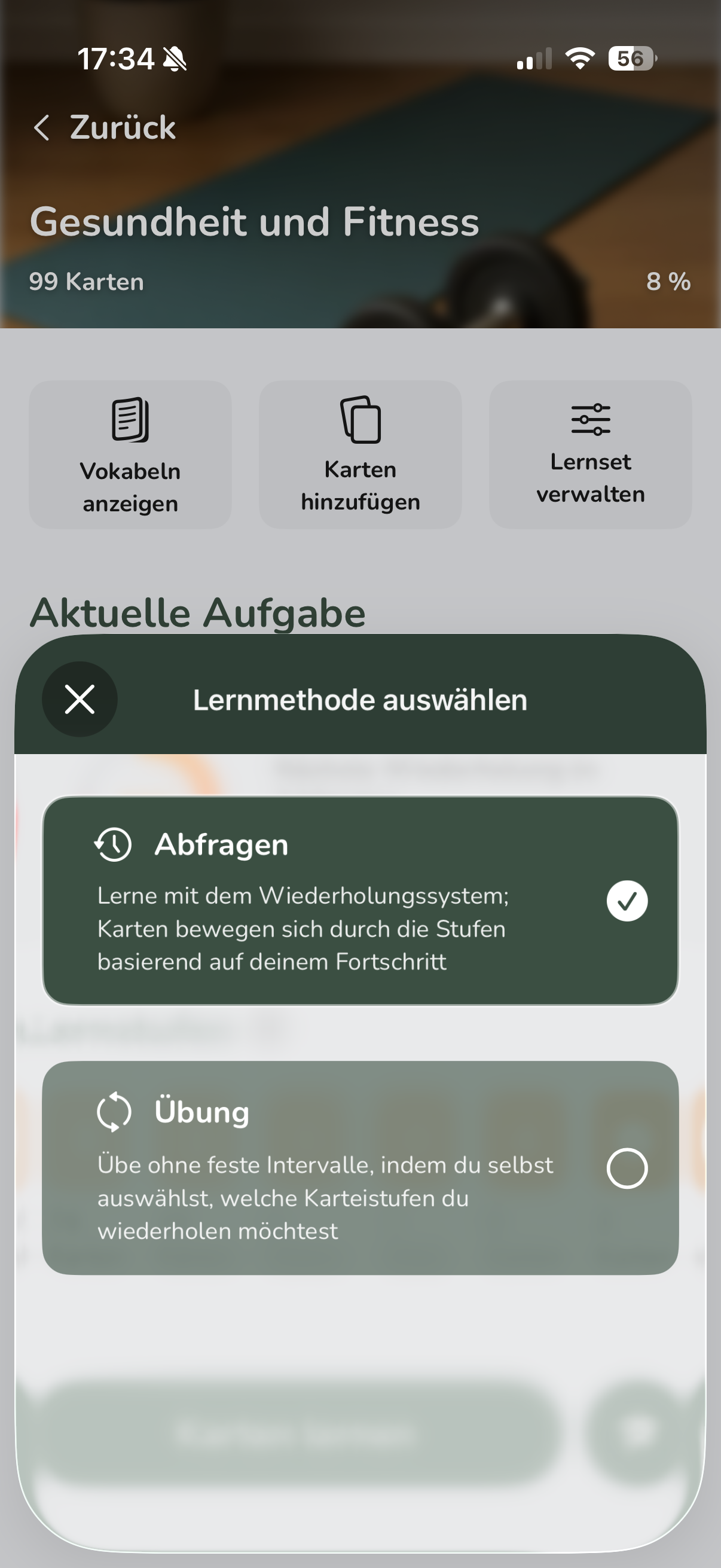
Choose Study Mode
Vocabu offers two study modes:
- Quiz: Uses the Spaced Repetition system with optimized review intervals
- Practice: Free practice without fixed intervals – ideal for refreshing knowledge
Study Session
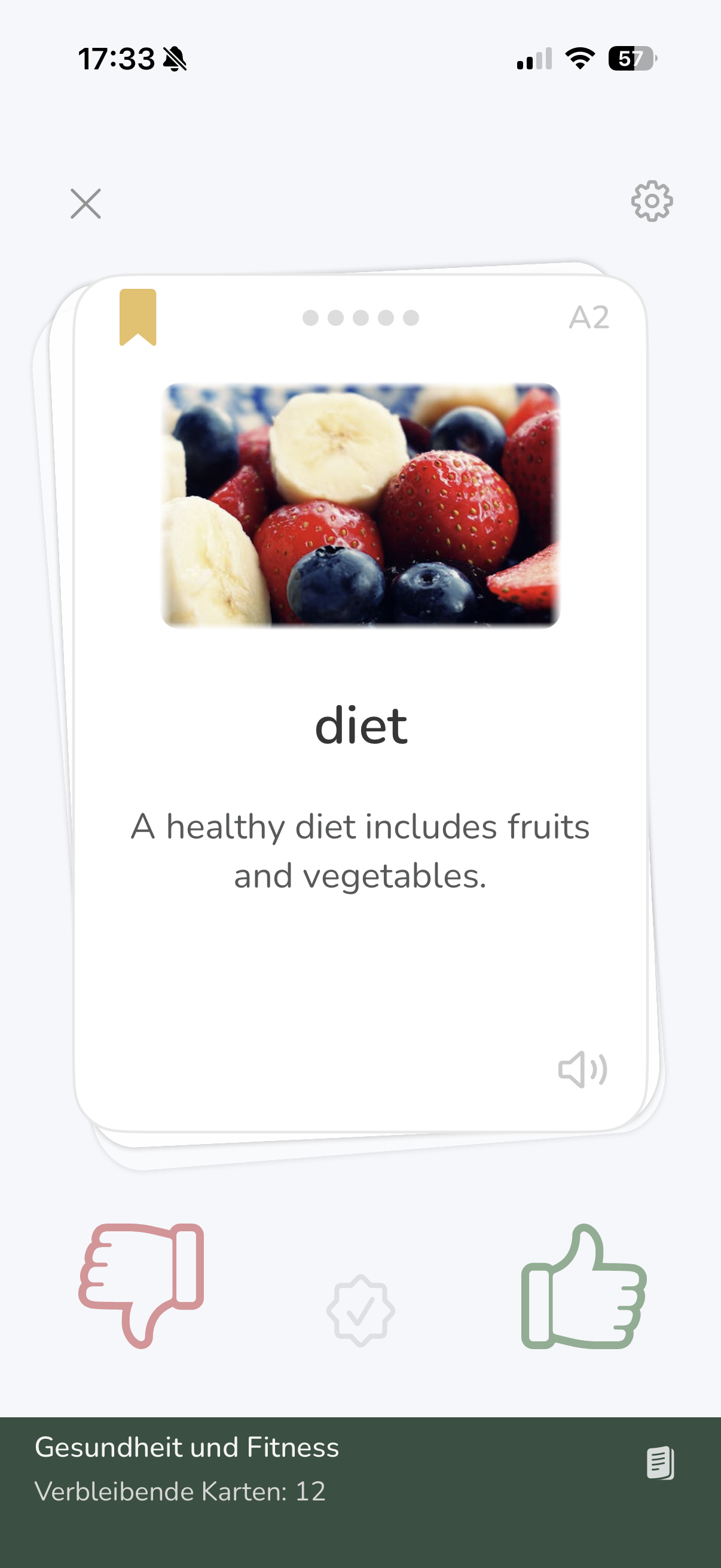
A study session consists of new cards, due reviews, or a mix of both, depending on the state of your study set. New cards appear for the first time, while reviews are cards you already know that are now due again at the optimal moment.
At the bottom of the screen you can always see how many cards remain in the current session – so you always know how far along you are.
You see the card and rate yourself on how well you knew the word. You have three rating options:
- 👎 Wrong (red thumb): The answer was wrong – the card drops one learning level and you'll review it sooner
- Middle button (Mastered): You know the card perfectly – it's marked as "mastered" and placed in the last level with the longest review interval
- 👍 Correct (green thumb): The answer was right – the card advances one level and you'll see it again at the next optimal time
The app automatically adjusts review intervals based on your ratings, so you always study at the optimal moment. Learn more about the principle behind this under The Flashcard System.
Session Complete
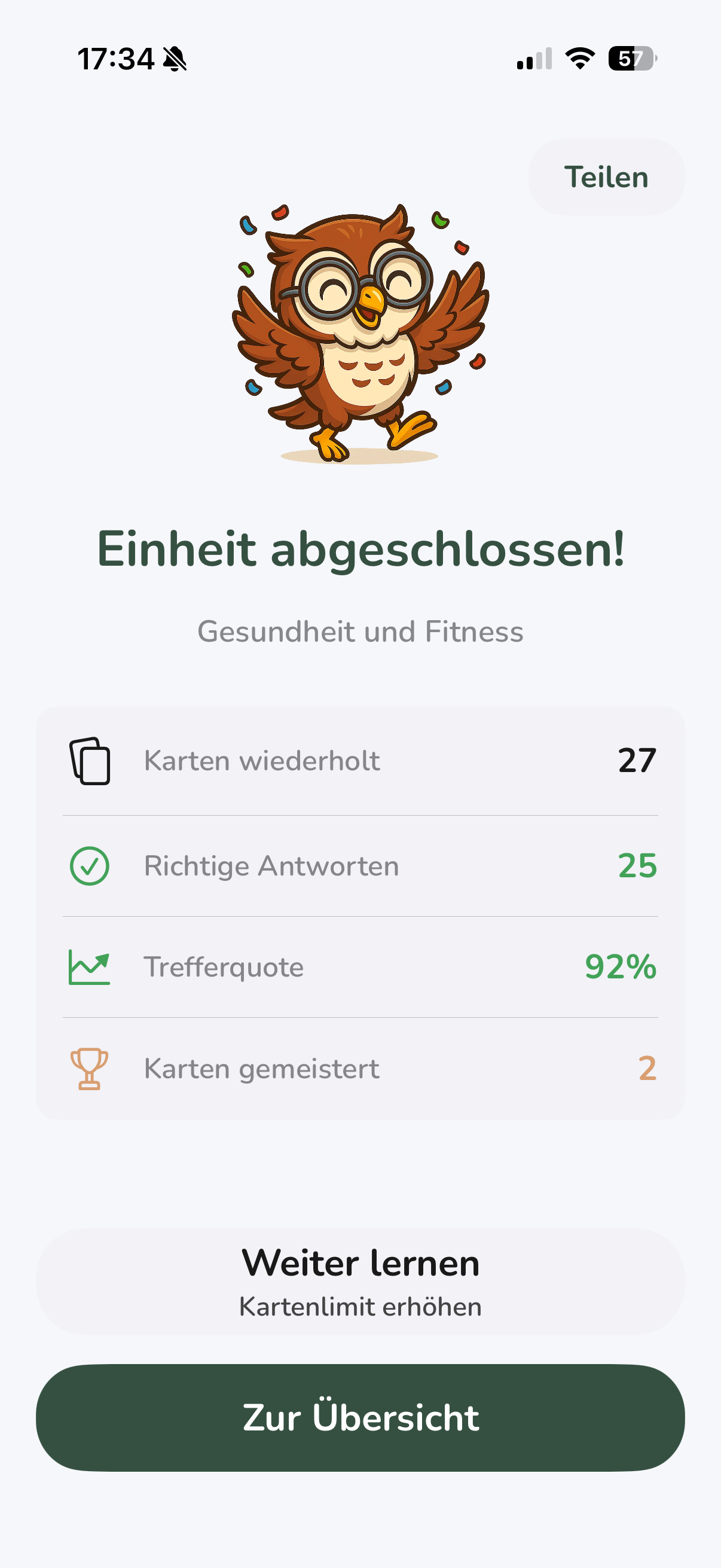
After finishing a study session you'll see a summary with statistics on correct and incorrect answers. You can continue studying or return to the overview.
Daily Limits
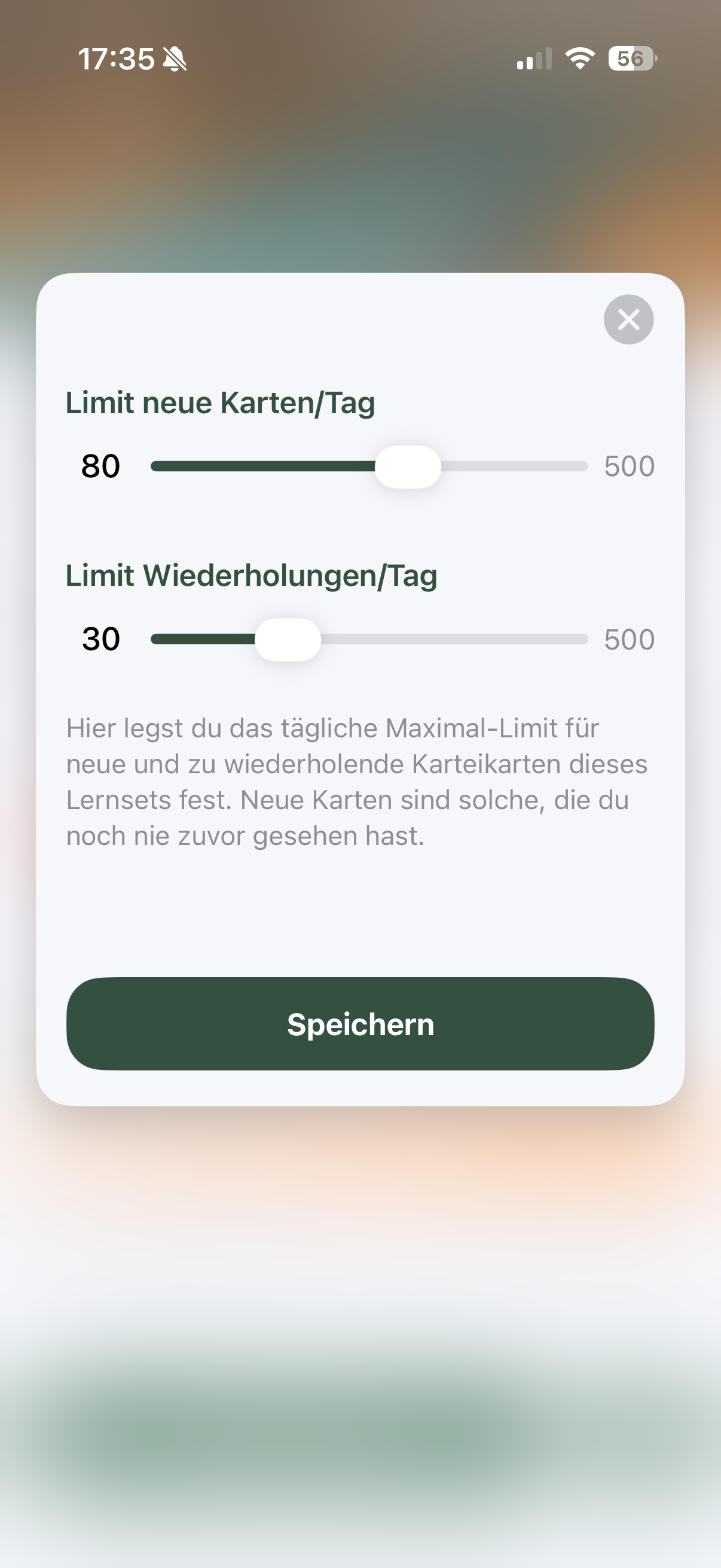
In Settings you can set daily limits:
- New cards per day: How many new words you want to learn each day
- Reviews per day: Maximum number of reviews
Customize Review Intervals (optional)
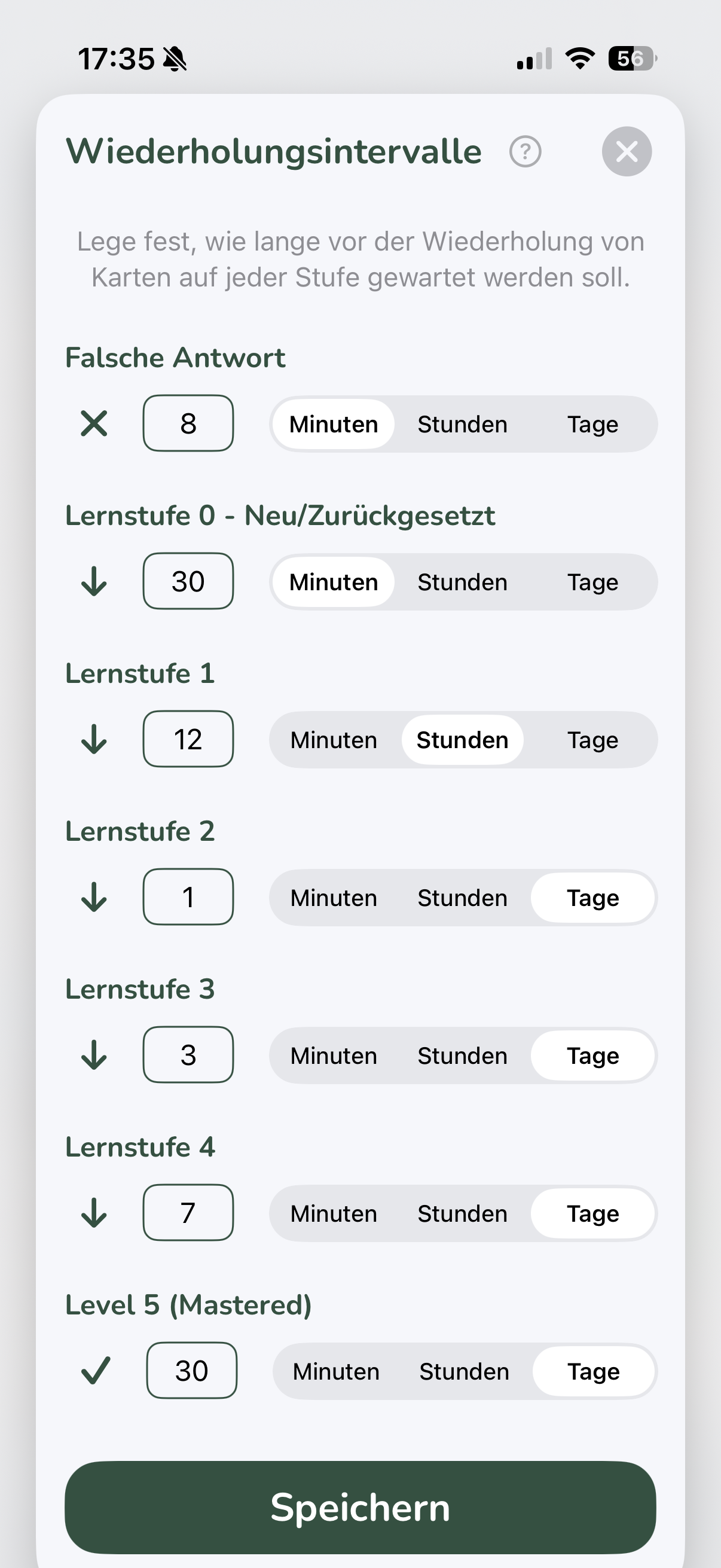
Vocabu assigns each card to one of five learning levels. Each level has its own review interval – the number of days until the card is shown again. The higher the level, the longer the interval.
The Learning Levels at a Glance
The default intervals are calibrated to the scientific forgetting curve:
- Level 1: New card – shown daily until you rate it "Correct"
- Level 2: First review after a few days
- Level 3: Review after about one week
- Level 4: Review after about two weeks
- Level 5 (Mastered): Long-term memory – review after several weeks or months
Adjust Intervals Yourself
In Settings you can freely set the number of days for each level. This is useful if you're studying for an exam and want shorter intervals, or if you're an advanced learner who wants to increase the gaps.
Vocabulary Difficulty
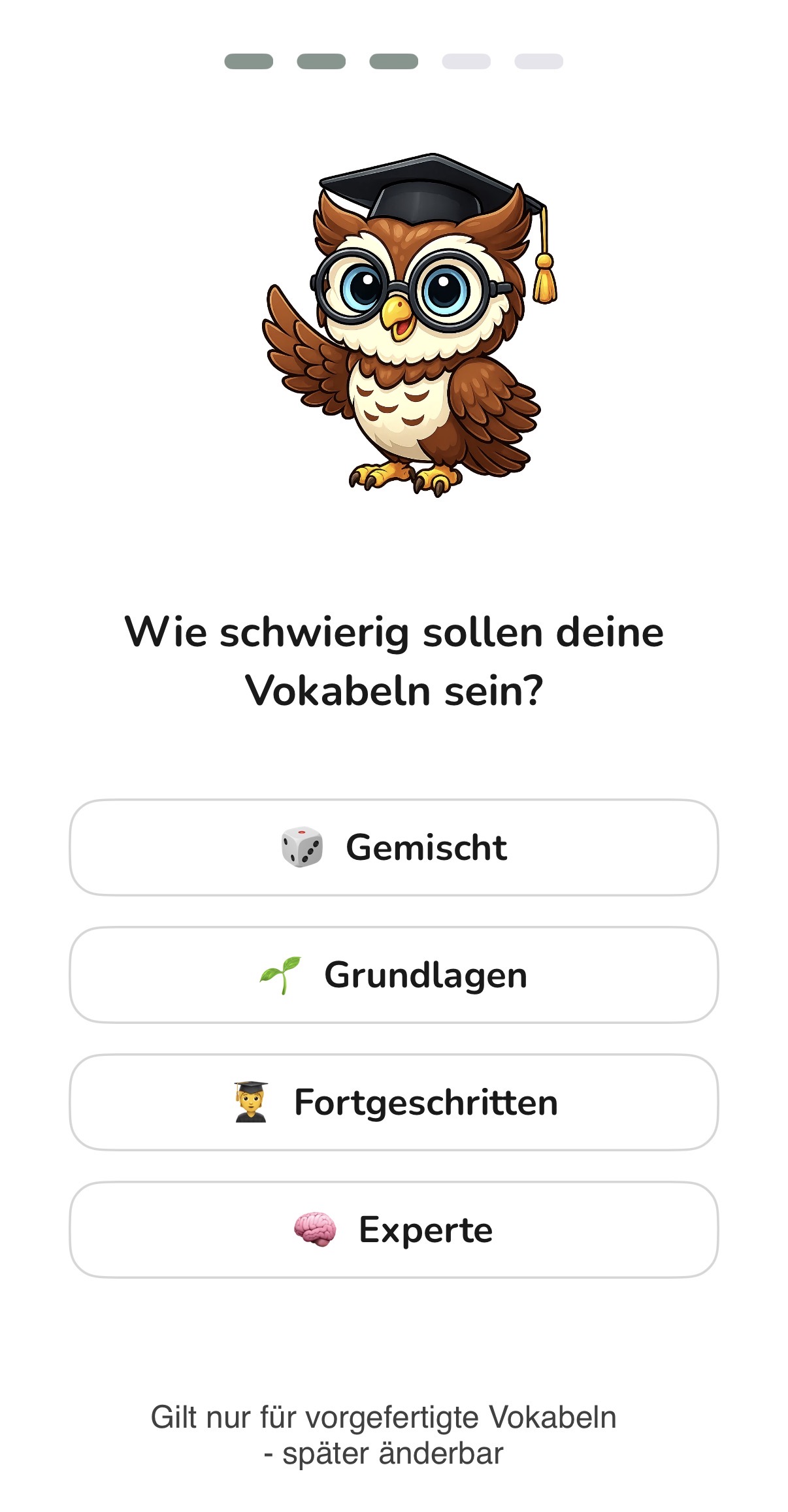
In Settings you can choose which difficulty level the pre-built vocabulary should have. Difficulty is rated using the internationally recognised CEFR system (Common European Framework of Reference) from A1 to C2.
The Difficulty Levels
- Beginner (A1–A2): Simple everyday vocabulary for beginners
- Intermediate (B1–B2): Extended vocabulary for intermediate learners
- Advanced (C1–C2): Challenging vocabulary for highly advanced learners
- Mixed (A1–C2): All difficulty levels combined
Streak & Progress
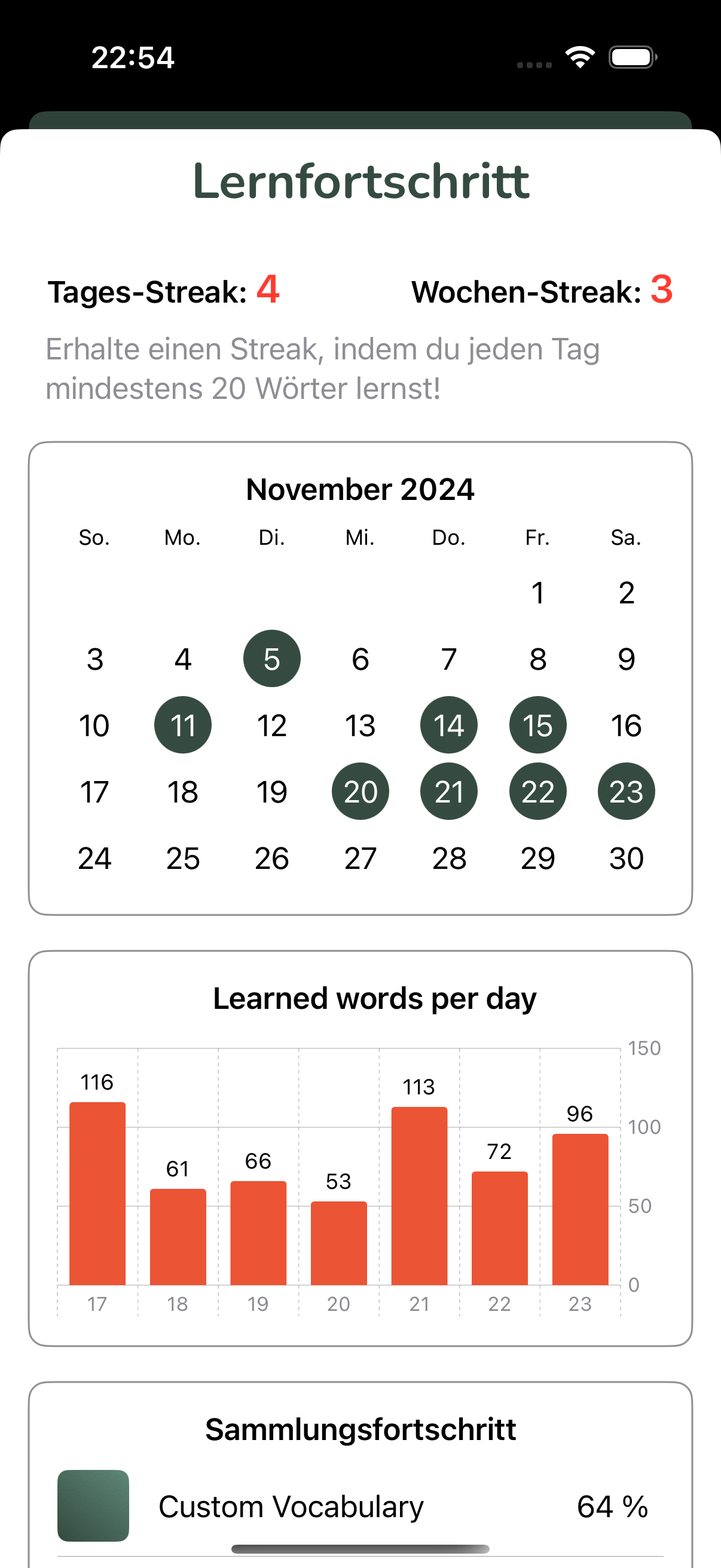
Vocabu shows your current streak (consecutive days you've studied) and your overall learning progress. Keep your streak going to build a consistent learning habit!
Streak Freeze
The "Streak Freeze" feature protects your learning streak:
- Automatic protection: If you miss your daily goal, a Streak Freeze is automatically used and your streak stays intact
- Earn freezes: After 5 consecutive days you earn 1 new freeze
- Maximum: You can accumulate up to 2 freezes at a time
Summary
You've now learned all the basic steps to study effectively with Vocabu:
- Create or select a study set
- Add cards with automatic translation
- Choose a study mode (Quiz or Practice)
- Study regularly and build your streak
- Adjust limits and intervals as needed