Getting Started with Vocabu – Learn Vocabulary Effectively
This guide walks you step by step through creating study sets, adding vocabulary, and learning efficiently with Vocabu's intelligent Spaced Repetition system.
How Vocabu Works
Vocabu is built around a simple but powerful idea: the more effort your brain makes to recall a word, the better it sticks. Instead of passively re-reading vocabulary lists, you actively test yourself — and the app schedules each word to reappear at exactly the right moment.
What Is a Flashcard?
A flashcard has two sides. One side shows the word you want to learn — for example a foreign word — and the other side shows the answer, such as the translation. You read the front, try to recall the answer in your head, then tap the card to flip it and check.
This moment of active recall — the mental effort of trying to remember — is what makes flashcards so much more effective than passively reading a list.
The 6 Learning Levels
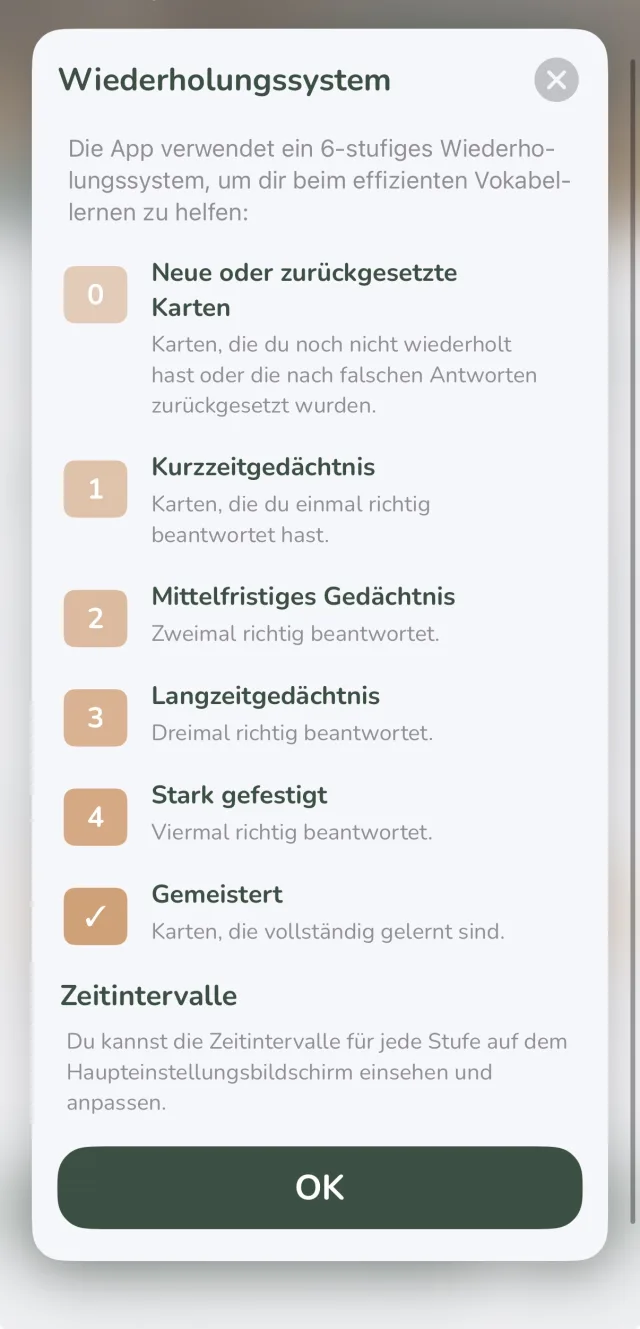
Every card in Vocabu lives at one of 6 learning levels, from Level 1 (New) to Level 6 (Mastered). Each time you rate a card correctly, it moves up one level and won't appear again until a longer interval has passed. Rate it wrong, and it drops back down.
- Level 1 – New: Not yet studied
- Level 2: Review after 1 day
- Level 3: Review after a few days
- Level 4: Review after about 1 week
- Level 5: Review after about 2 weeks
- Level 6 – Mastered: Review after several weeks or months
Why the Timing Matters – Spaced Repetition
The review intervals are not random. They are timed to hit the moment just before you would forget the word — a technique called Spaced Repetition, based on the scientifically proven forgetting curve. The result: you spend less time on words you already know well, and more time on the ones you don't.
Studies show Spaced Repetition is up to five times more efficient for long-term retention than cramming.
The Three Rating Options
After flipping a card you rate how well you knew the answer:
- 👎 Wrong: You didn't know it — the card drops one level and comes back soon
- ✅ Learned: You know it perfectly — the card jumps straight to Level 6 (Mastered)
- 👍 Correct: You got it right — the card moves up one level
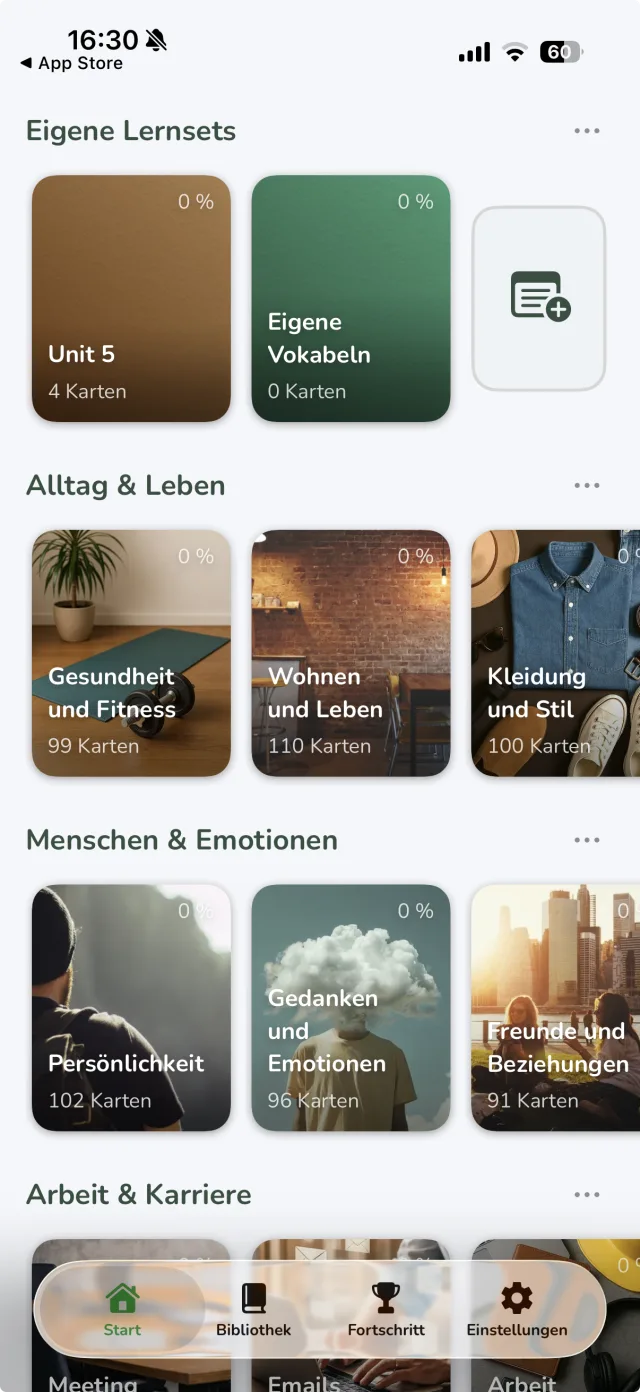
Select or Create a Study Set
The home screen shows an overview of your study sets. Tap an existing set to open it, or tap the plus icon to create a new study set.
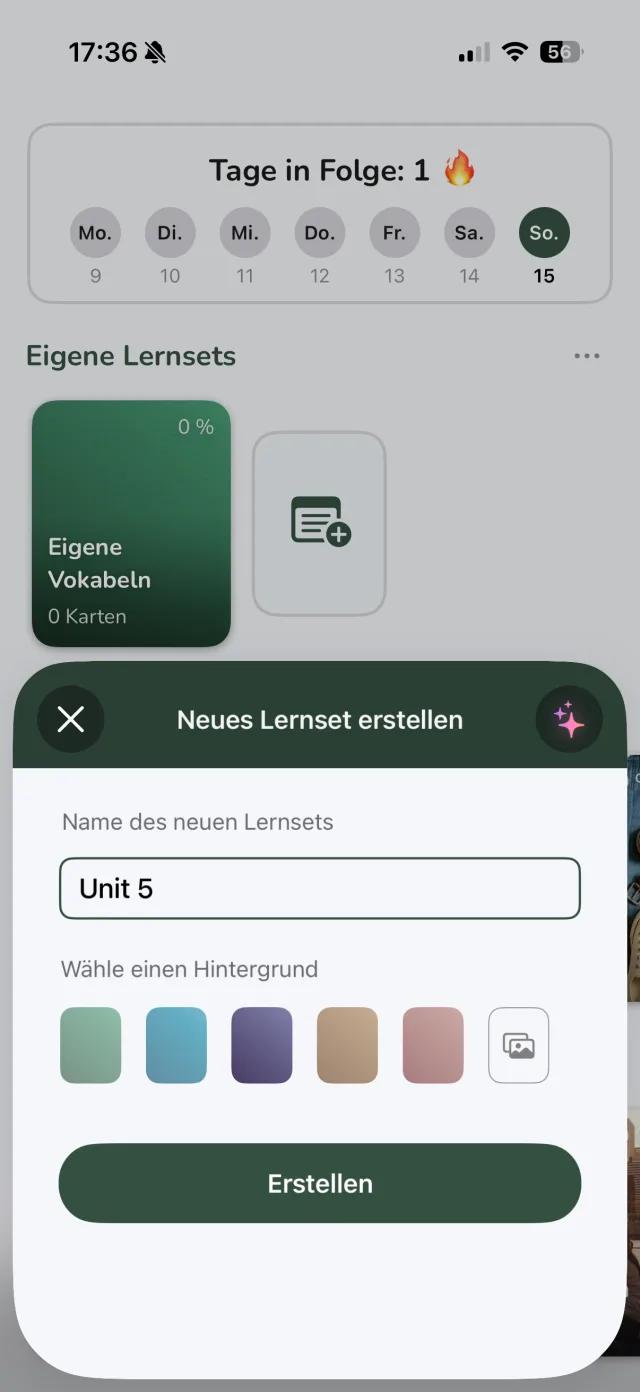
Create a New Study Set
When creating a new study set, you can give it a name and choose a matching background. Then tap "Create" to set it up.
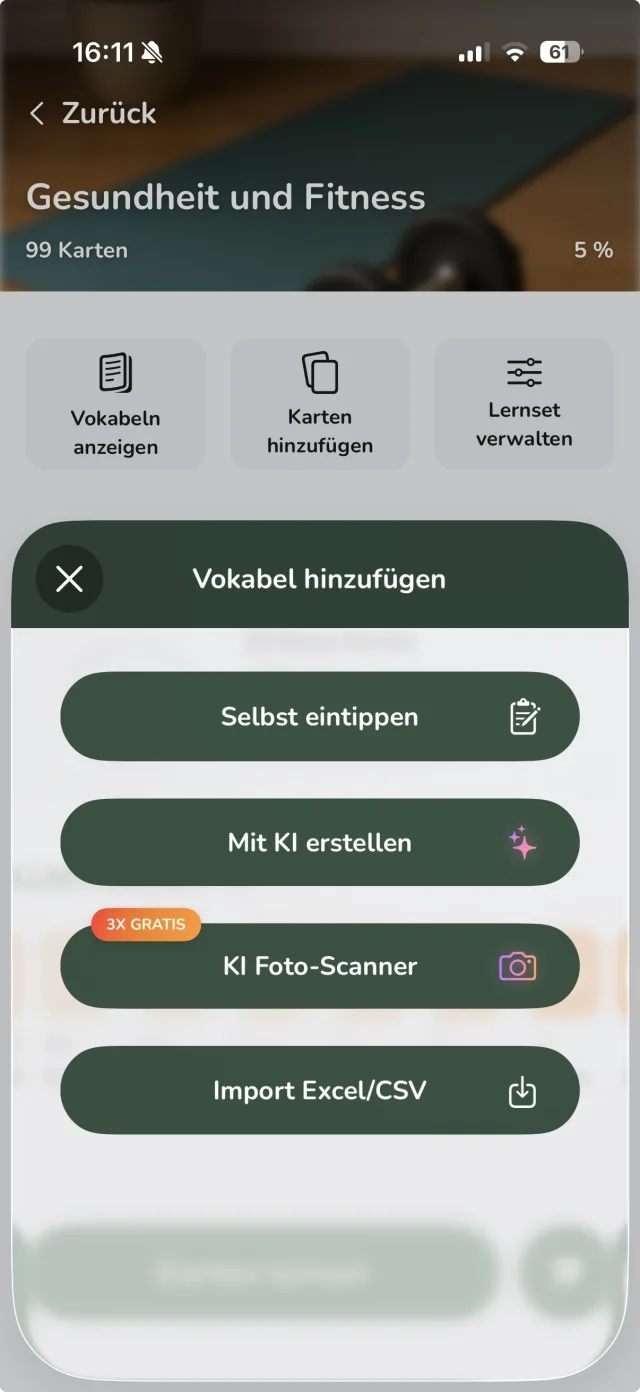
Add Cards
Inside your study set, tap "Add Cards" or the plus icon. Vocabu offers several ways to add vocabulary:
- Type manually: Enter vocabulary one at a time
- Create with AI: Let the AI generate a complete collection on any topic
- AI Photo Scanner: Scan vocabulary from photos or documents
- Import Excel/CSV: Import existing vocabulary lists
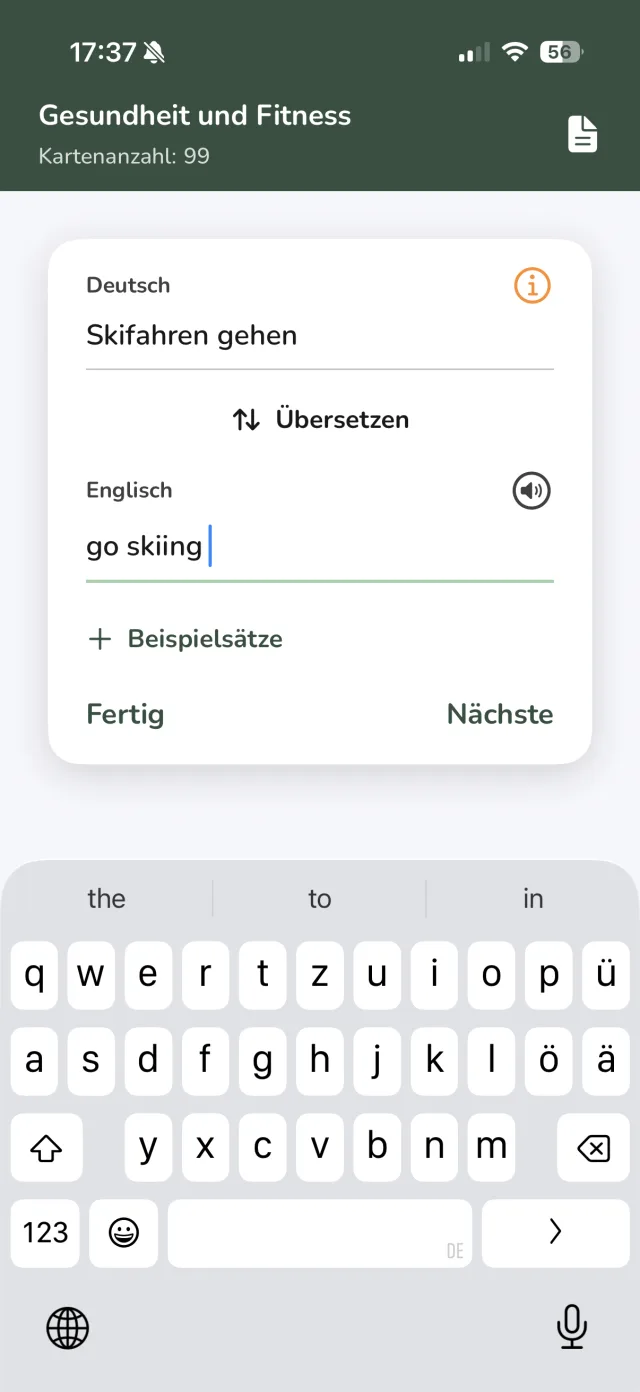
Type it Yourself
When creating a card manually, enter the word and add the translation. Optionally you can include example sentences, images or audio recordings. Tap "Next" to add more cards, or "Done" when you're finished.
Create with AI
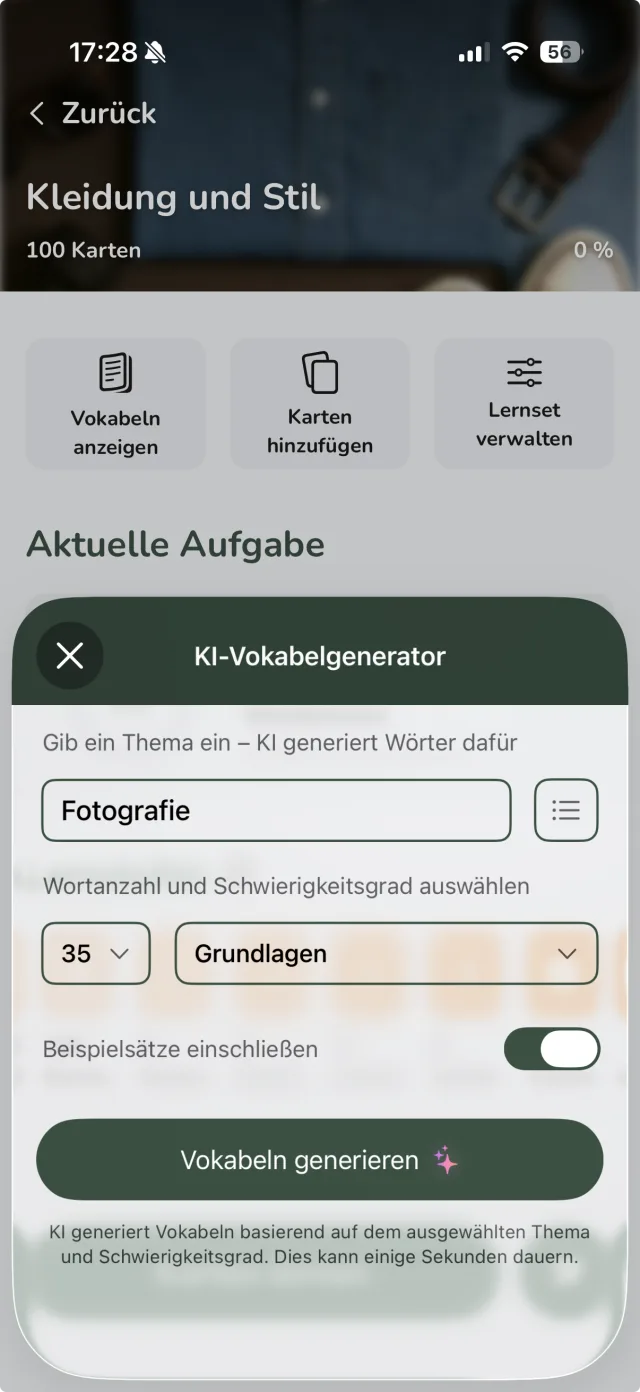
You don't have to type vocabulary one by one – Vocabu can automatically create a complete card collection on any topic you choose. Simply enter a topic, pick your settings, and let the AI do the work.
How it works
- In your study set, tap "Add Cards" → "Create with AI"
- Enter a topic, e.g. "English words for travel" or "French verbs for everyday life"
- Choose whether cards should be created with or without example sentences
- Confirm with "Create" – the AI generates the cards automatically
- The finished cards are added directly to your collection
AI Photo Scanner
With the AI Photo Scanner you can digitize vocabulary quickly and easily from various sources:
- Scan photos: Photograph textbooks, worksheets or other printed materials
- Use screenshots: Import screenshots from digital documents or websites
- Recognize handwriting: The AI can also process handwritten notes
How it works
- Select "AI Photo Scanner" from the "Add Cards" menu
- Take a photo or select an image containing vocabulary
- The AI automatically extracts text and identifies vocabulary
- Review the recognized vocabulary and correct if needed
- Add the vocabulary to your collection with one tap
Excel Import
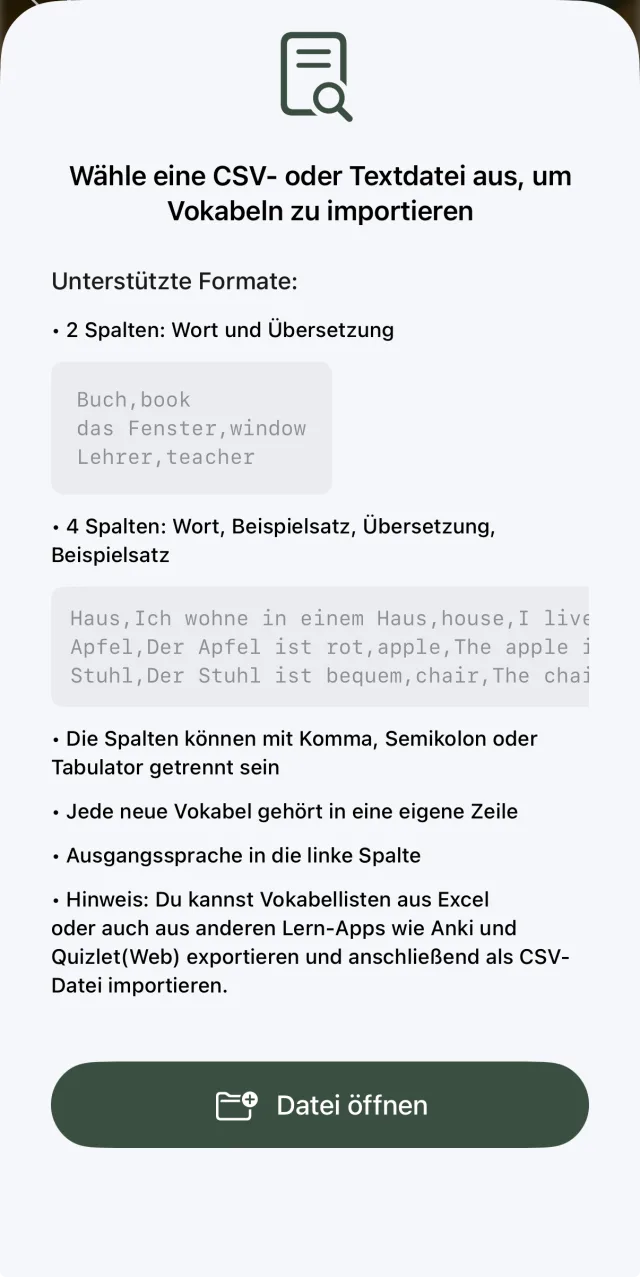
You can import vocabulary conveniently as a CSV or text file – for example from Excel, or from other learning apps like Anki and Quizlet (web export).
Supported Formats
- 2 columns: Word and translation
book, Buch - 4 columns: Word, example sentence, translation, example sentence (target language)
house, I live in a house, Haus, Ich wohne in einem Haus
Format Notes
- Columns can be separated by comma, semicolon or tab
- Each new vocabulary item belongs on its own line
- The source language goes in the left column
Study Set Overview
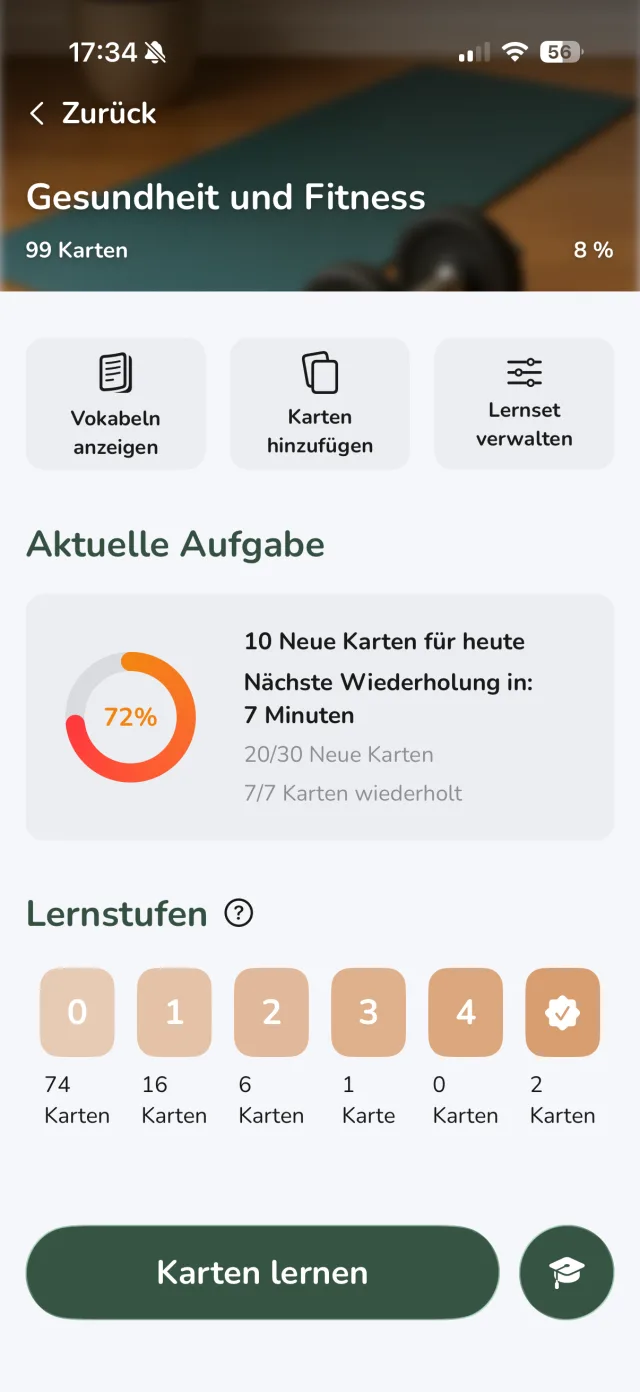
Once you have cards in your study set, you can start learning. Tap “Study Cards” to begin a session.
The “Learning Levels” Widget
In the app you’ll see the Learning Levels widget, which shows at a glance how your cards are distributed across all 6 learning levels. Each level is displayed as its own column – from New on the far left to Mastered on the far right. The number in each column shows how many cards are currently at that level.
“Current Task” Widget
The widget shows you at a glance:
- Due Cards: How many cards are scheduled for review today
- New Cards: How many new words you can learn today
- Level Distribution: An overview of how your cards are spread across levels
All Sets Overview
On the home screen you'll see the Overview Widget, which shows at a glance how many cards are due today and when the next review is scheduled. Tap the widget to open the Overview Screen.
The Overview Screen
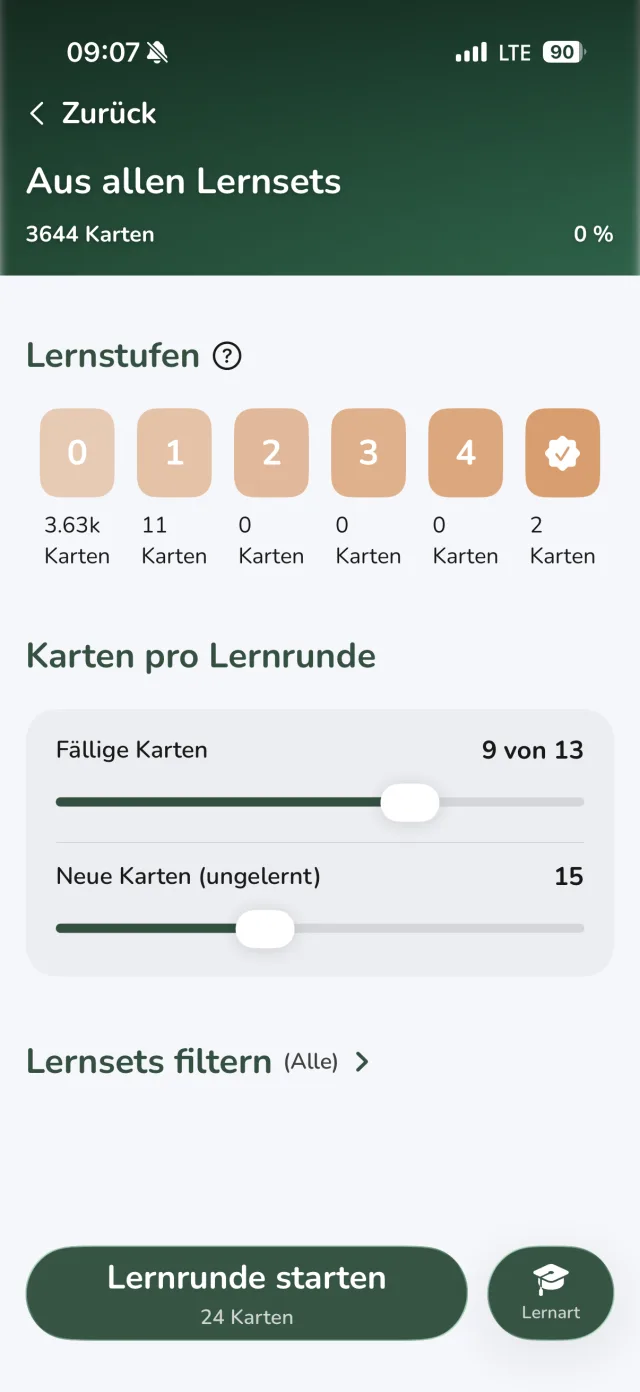
The Overview Screen combines cards from all your study sets into a single session – no need to switch between sets. At the top you see the total number of cards and your overall progress.
Adjust Your Session
Before starting, fine-tune the session using two sliders:
- Due Cards: How many scheduled review cards to include
- New Cards: How many new (unlearned) cards to add to the session
Filter by Study Set
Tap "Filter Study Sets" to restrict the session to specific sets – useful when you want to focus on a particular topic while keeping the cross-set convenience.
Choose Study Mode
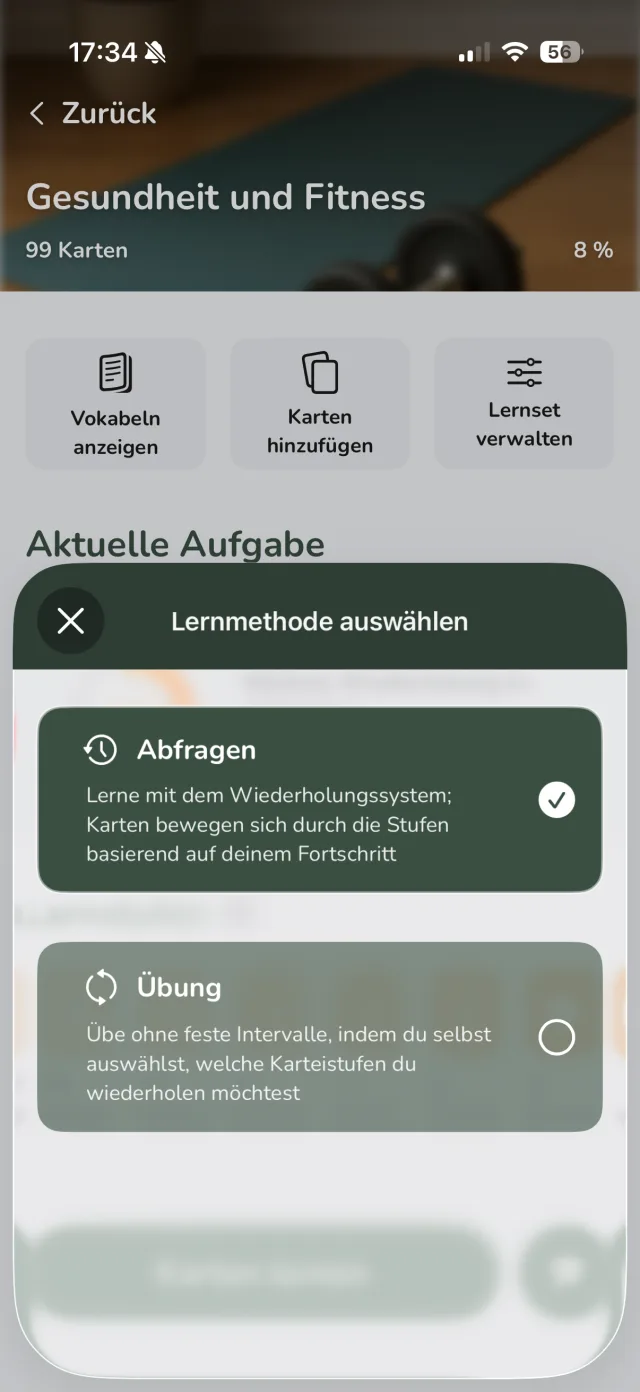
Vocabu offers two study modes:
- Quiz: Uses the Spaced Repetition system with optimized review intervals
- Practice: Free practice without fixed intervals – ideal for refreshing knowledge
Study Session
A study session consists of new cards, due reviews, or a mix of both, depending on the state of your study set. New cards appear for the first time, while reviews are cards you already know that are now due again at the optimal moment.
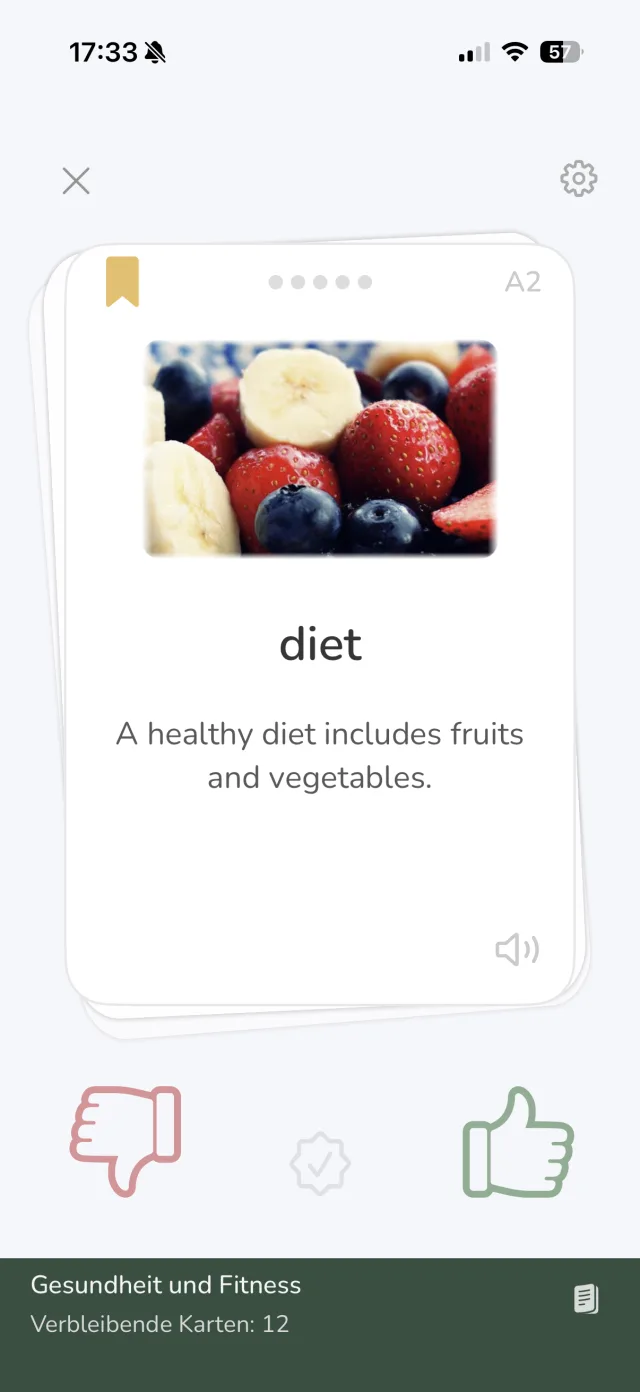
At the bottom of the screen you can always see how many cards remain in the current session – so you always know how far along you are.
You see the card and rate yourself on how well you knew the word. You have three rating options:
- 👎 Wrong (red thumb): The answer was wrong – the card drops one learning level and you'll review it sooner
- Middle button (Mastered): You know the card perfectly – it's marked as "mastered" and placed in the last level with the longest review interval
- 👍 Correct (green thumb): The answer was right – the card advances one level and you'll see it again at the next optimal time
The app automatically adjusts review intervals based on your ratings, so you always study at the optimal moment. Learn more about the principle behind this under How Vocabu Works.
Spelling Practice
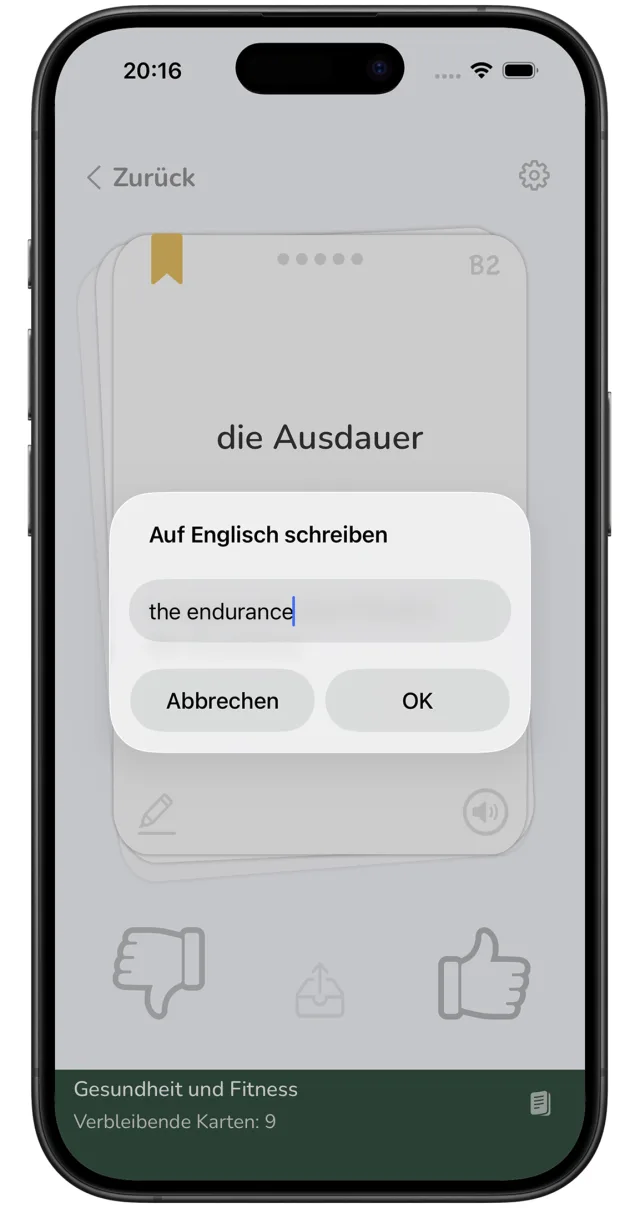
Spelling practice trains not just whether you know a word, but whether you can spell it correctly. Tap the pencil button at the bottom left of the flashcard to start the exercise.
How it works
- Tap the pencil button at the bottom left of the flashcard
- An input field appears – write the word in the foreign language
- Confirm your answer with "OK"
- Flip the card yourself to reveal the solution
- Compare your answer with the word on the card
- Rate yourself: swipe right for correct or swipe left for wrong
AI Word Details
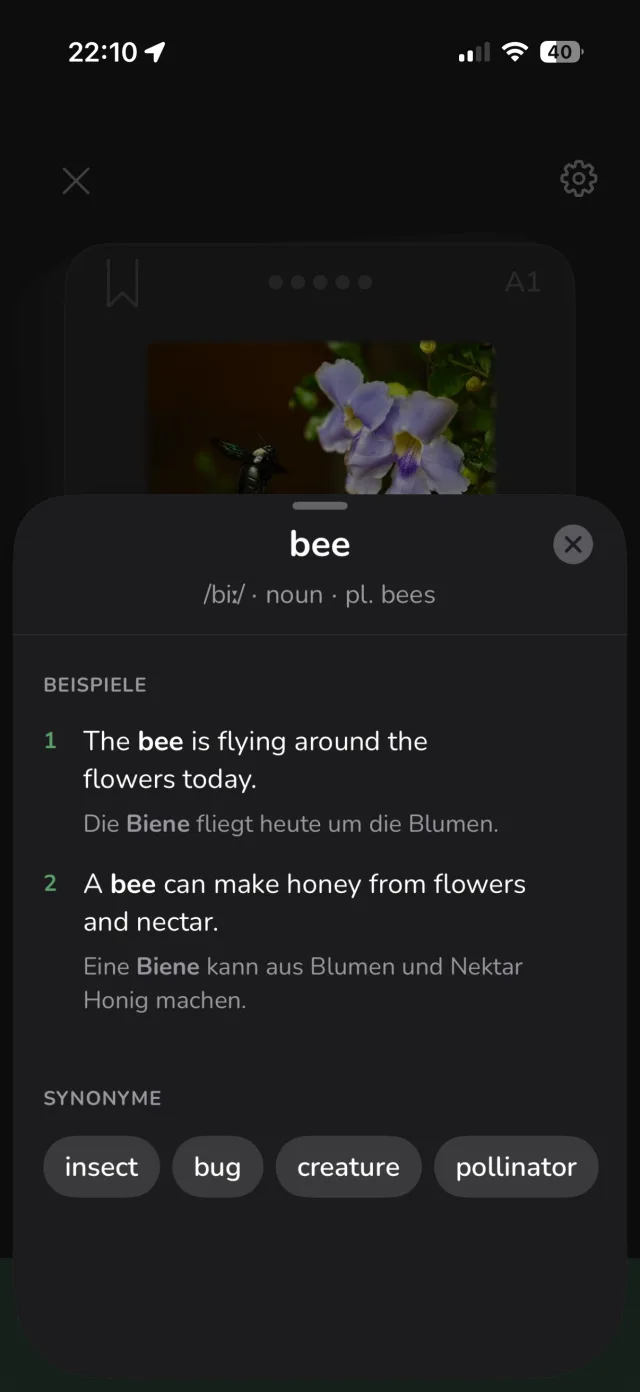
Tap the ℹ️ icon on any flashcard to open the AI Word Details panel. It gives you deeper context about the word – directly within your study session.
What You'll See
- Pronunciation: IPA notation (e.g. /biː/)
- Grammar: Word type and forms (e.g. noun · pl. bees)
- Example Sentences: Two bilingual examples with the word highlighted in both languages
- Synonyms: Related words shown as tags
Session Complete
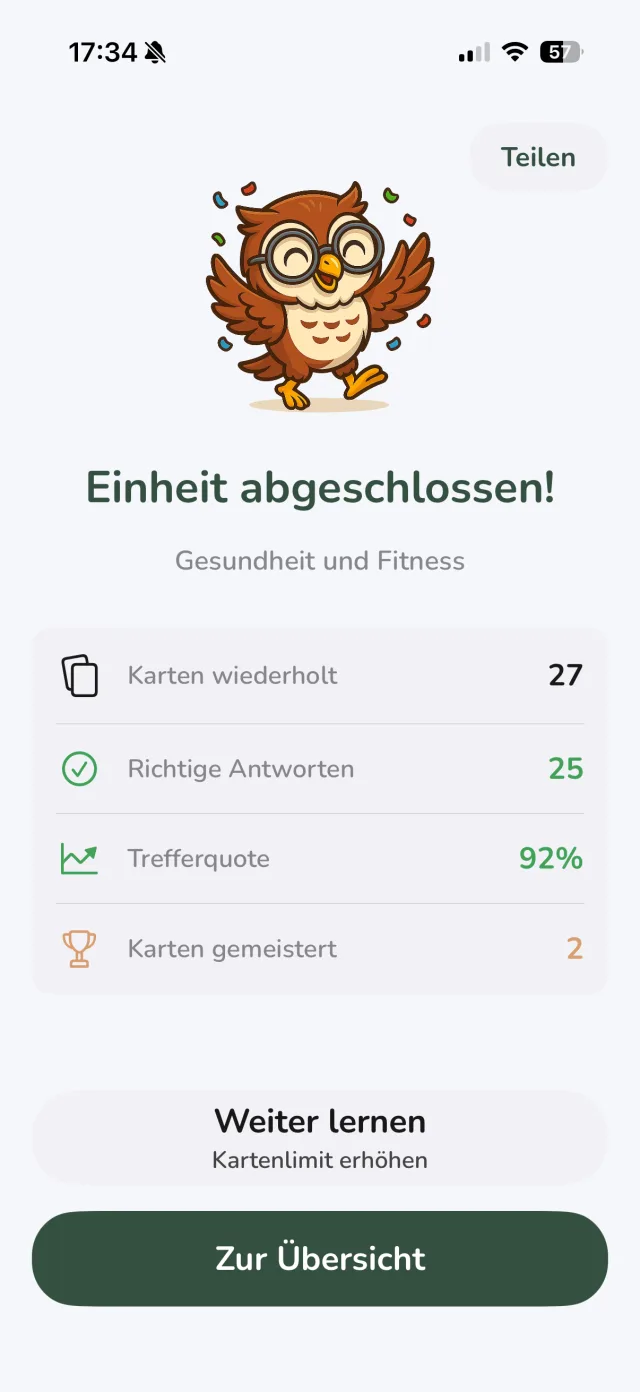
After finishing a study session you'll see a summary with statistics on correct and incorrect answers. You can continue studying or return to the overview.
Daily Limits
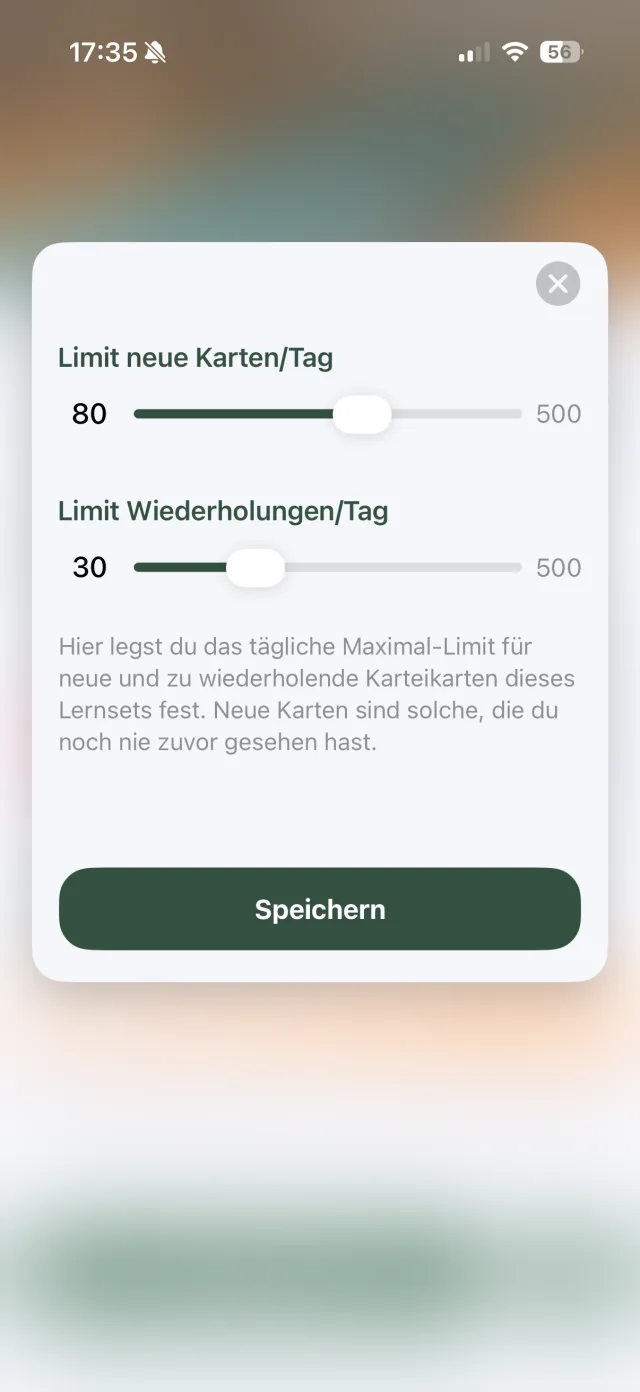
In Settings you can set daily limits:
- New cards per day: How many new words you want to learn each day
- Reviews per day: Maximum number of reviews
Customize Review Intervals (optional)
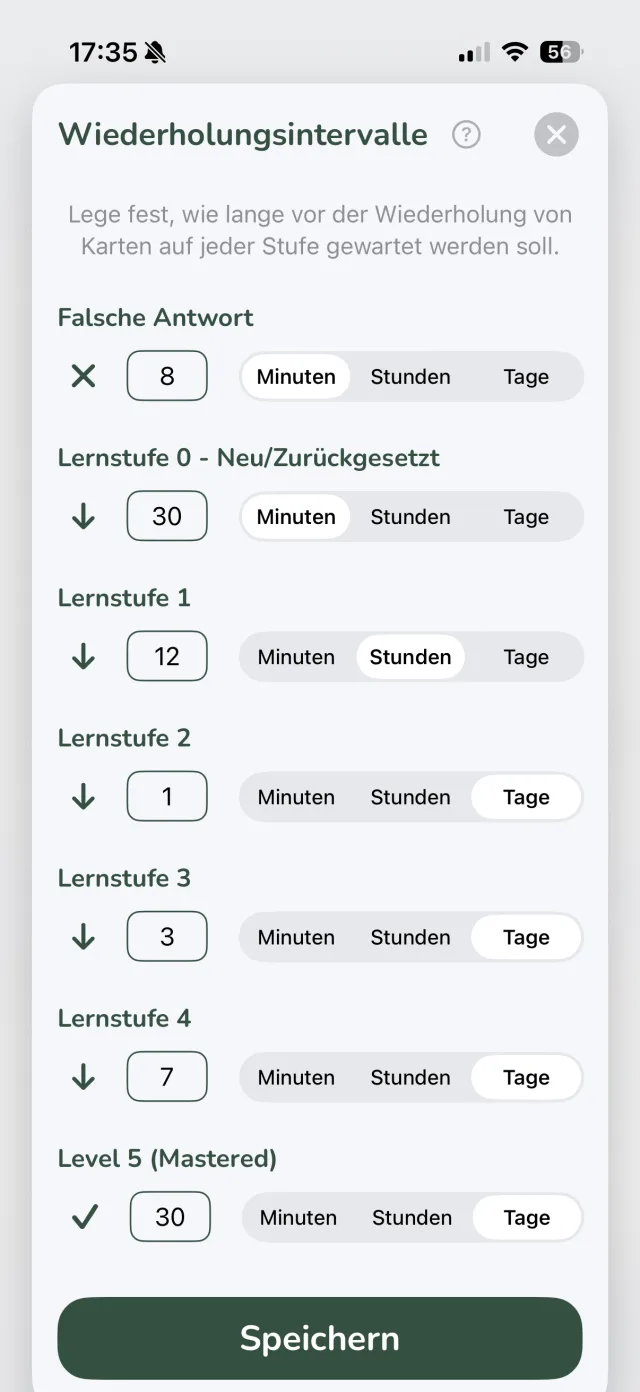
Vocabu assigns each card to one of five learning levels. Each level has its own review interval – the number of days until the card is shown again. The higher the level, the longer the interval.
The Learning Levels at a Glance
The default intervals are calibrated to the scientific forgetting curve:
- Level 1 – New: Not yet studied – shown in every session until rated "Correct"
- Level 2: Review after 1 day
- Level 3: Review after a few days
- Level 4: Review after about one week
- Level 5: Review after about two weeks
- Level 6 – Mastered: Long-term memory – review after several weeks or months
Adjust Intervals Yourself
In Settings you can freely set the number of days for each level. This is useful if you're studying for an exam and want shorter intervals, or if you're an advanced learner who wants to increase the gaps.
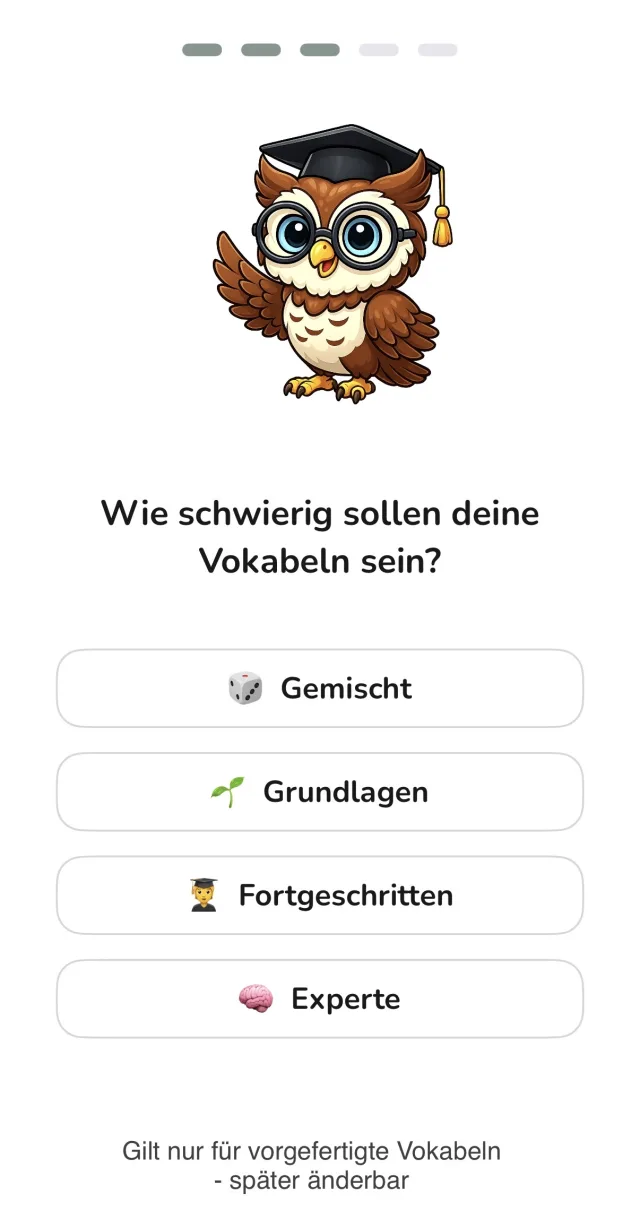
Vocabulary Difficulty
In Settings you can choose which difficulty level the pre-built vocabulary should have. Difficulty is rated using the internationally recognised CEFR system (Common European Framework of Reference) from A1 to C2.
The Difficulty Levels
- Beginner (A1–A2): Simple everyday vocabulary for beginners
- Intermediate (B1–B2): Extended vocabulary for intermediate learners
- Advanced (C1–C2): Challenging vocabulary for highly advanced learners
- Mixed (A1–C2): All difficulty levels combined
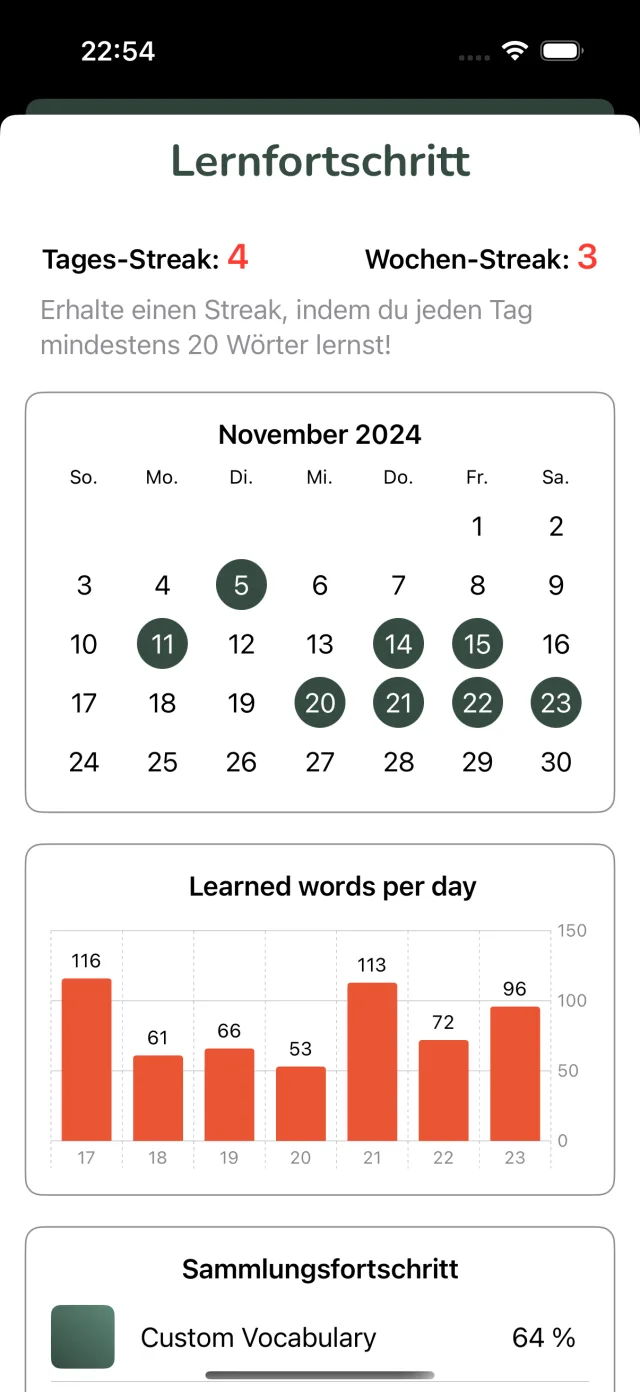
Streak & Progress
Vocabu shows your current streak (consecutive days you've studied) and your overall learning progress. Keep your streak going to build a consistent learning habit!
Streak Freeze
The "Streak Freeze" feature protects your learning streak:
- Automatic protection: If you miss your daily goal, a Streak Freeze is automatically used and your streak stays intact
- Earn freezes: After 5 consecutive days you earn 1 new freeze
- Maximum: You can accumulate up to 2 freezes at a time
Summary
You've now learned all the basic steps to study effectively with Vocabu:
- Create or select a study set
- Add cards with automatic translation
- Choose a study mode (Quiz or Practice)
- Study regularly and build your streak
- Adjust limits and intervals as needed